New Post

Rss

Showing posts with label android. Show all posts
Wednesday, September 11, 2013
How to Transfer Android Apps via Bluetooth

How to Transfer Android Apps via Bluetooth

I have recevied requests from many people that they are unable to send andriod apps from one phone to another via bluetooth so I have foud this trick to transfer mobile app from one phone to other hope that you all are going to like this. 

Method: 

There are two steps in transferring android apps using Bluetooth. 


→ Create APK files using Astro 
→ Transfer APK files using Bluetooth Transfer App. 

Create APK files using Astro: 

→ Download & install Astro on your android phone. 
→ Run the application. 
→ Press the settings soft key and choose “Tools” option. A pop-up will be opened. 
→ Now, select “Application Backup” and wait for Astro to generate a list of all the apps installed on your mobile.


→ From the list, select the android app that you’d like to send via Bluetooth to another mobile and click the “backup” button to create the APK file. 
→ Once the backup is finished, press the “back” key to return to Astro main screen. 
→ Navigate to your SD card -> Backups -> Apps to find the APK files created by Astro.

 Transfer APK files using Bluetooth Transfer App: 


→ Download, Install and Run Bluetooth Transfer App (you require this app as the Bluetooth access to APK files is blocked by default). 
→ Once the app is opened, go to SD card -> Backups -> Apps and select the file you want to send to another phone and press the “Bluetooth” button (search for the other device and send it). 


→ The receiver can now be able to install the android app on his mobile phone without any problem.
Friday, September 6, 2013
How to Download Facebook Video in Android Mobile

How to Download Facebook Video in Android Mobile

Do you know you can download facebook video in Android Mobile. Lets see detail procedure to download facebook videos in your android phone.As we know there is no option available in Facebook to download a video to our computer and phone as well, we can just watch them in Facebook.

However, we can get our favorite videos directly to our android smart phone using a third-party application called as “ES file explorer” which is available to download for free on Google play store. With using this app, we can store any Facebook video very quickly, and it’s very easy too.  Just scroll down to read step by step fully explained tutorial.

How To Download Facebook Videos in android Mobile:


As I said earlier, we need to use a third-party application to do this. I explained the whole process from the scratch, especially for newbie’s.
  • Go to Google Play store application, search for ES File explorer app there. Once you found it, download and install the app in your device.
  • I hope you already have Facebook android App installed in your device, otherwise download & install it from the same Google play store.
  • Now open the Facebook app, and log in there using your email id and password as usually.
  • Search / open the video which you want to download, and then touch on the play button which appears on center of the video screen.
  • Once you taped on Play button, it will open a pop-up window like shown below.
  • There you need to click on “ES Downloader” if you wish to download that video. Immediately you will see download process of your video.
  • Once downloading has finished, you will see your downloaded video in gallery of your smart phone.
     
That’s all. Now you can start downloading all of your favorite videos to your smart phone, without any cost. The advantage of downloading FB videos to your phone is you will be able to watch them anytime.
To Download → ES file explorer
Thursday, August 29, 2013
79 Percent of Mobile Malware Targets Android

79 Percent of Mobile Malware Targets Android

An overwhelming 79 percent of all mobile malware threats target devices running Google's Android operating system, according to a joint unclassified memo from the U.S. Department of Homeland Security and Department of Justice.
"Android is the world's most widely used mobile operating system and continues to be a primary target for malware due to its market share and open source architecture," notes the July 23 memo[PDF], which was obtained and published online by the website Public Intelligence.

In comparison, just 0.7 percent of mobile malware is designed to take advantage of Apple's iOS, according to the document, which cites data from 2012. Another 19 percent targets Nokia's aging Symbian platform while 0.3 percent affects Windows Mobile and BlackBerry, and the remaining 0.7 percent takes advantage of other mobile operating systems.


A major part of the problem on Android is that so many users are running old versions riddled with security vulnerabilities. The memo cites industry stats finding that 44 percent of Android users were running Android Gingerbread (version 2.3.3 through 2.3.7), which was released in 2011 and contains a number of flaws that were patched in more recent versions.


Google's Android 4.3: What's New?


The problem isn't quite that extreme anymore, as some users have updated to newer versions since those numbers were released. Even so, as of Google's most recent stats, Gingerbread was running on 33.1 percent of Android devices while the even older Android Froyo, Eclair, and Donut versions together accounted for 3.8 percent.
"The growing use of mobile devices by federal, state, and local authorities makes it more important than ever to keep mobile OS patched and up-to-date," the memo states.


Nearly half of the malicious apps circulating today on older Android OS devices are SMS text message trojans, which send messages to premium-rate numbers without the user's consent, resulting in "exorbitant charges." Other known security threats facing mobile devices include rootkits, which silently log a user's location, keystrokes, and passwords, and fake Google Play domains, which are set up by crybercriminals to trick users into installing malware.


Friday, August 2, 2013
Samsung Galaxy Note 510 Review

Samsung Galaxy Note 510 Review


Samsung has been enabling its tablets with calling functionality ever since the first ever non-Apple tablet released, the company’s own Galaxy Tab. While the original Galaxy Tab didn’t have an ear piece to enable phone-like calling, it did have the support. Tab 2 310, its successor on the other hand had an ear piece to let people use it like a phone. Various other manufacturers then warmed up to this idea and released their own calling tablet much to the critics’ ridicule, but a market was definitely there. On that note, Samsung launched the Note 8.0 at the Mobile World Congress this year, and introduced a WiFi as well as a cellular version with calling.
We had reviewed the WiFi version earlier and now we are going to see how the cellular version is different and what its extra features are. Is the calling version really that useful on a 8 inch tablet? Lets find out.


Perfect Size for on the go

Designed for wherever inspiration strikes. Introducing the new Note 510, made for the thinkers, the dreamers, the movers and shakers. Scribble a thought, sketch out a concept, organise your ideas and express your creativity wherever inspiration may strike. It feels just right in your hand reading on the subway, giving a presentation, or enjoying a movie in bed.


Reading Mode with S Pen

Your books will never know.
Indulge yourself with a good book in any environment with Reading Mode that reads just like paper. By optimising the gorgeous screen to provide perfect illumination and tone, it delivers a comfortable reading experience in all lighting conditions. And with the ability to annotate directly with the S pen, all on a size made easy to hold, reading has never been more enjoyable, even on the go.


Multi Window

 Multitasking during calls made simple.
Give your mobile lifestyle a boost with simultaneous calls and Multi Windows.
Jot down notes, look up directions, check email, search – all the things you need to do during a call at once, all without switching apps. Reposition, expand to full screen, or close any window immediately with smart buttons that adapt to the position of the S Pen for a truly integrated experience.


S Pen / Air View, Easy Clip, Capture, Quick Command 

Make your ideas come to life. One stroke at a time.
The S Pen is no ordinary tool. Use it to tap the hard keys for an even more extensive navigation than before. Air View lets you to take a peek at any file just by hovering over it. Clipping gets done swiftly with an expert’s precision, and Quick Command helps you easily find what you’re looking for. Frankly, you’ll be left wondering how you lived without it.


S Planner / Various Sticker, Handwriting, Memo, Search

Your calendar, notes, and diary. All in one place.
Life is full of important events and memorable moments – capture them all effortlessly with S Planner. Handwrite events and notes directly in your calendar, or scribble your thoughts down with the natural feel of a pen. You can even decorate handwritten messages and share them with friends and family.


S Note / 10 Templates + 3 New Templates

Take notes in style for all your idea inspirations. You’re full of great ideas – S Note transforms them, beautifully refined. Easily create stunning presentations with template enhancements that help your ideas stand out from the rest.


Tools of Expression / Paper Artist

Made for all your artistic inspirations.
Get your creative juices flowing with the perfect tools for the modern artist. With Paper Artist, reach a whole new level of artistic expression with beautiful brushes to create stunning drawings, paintings, and illustrations. With Photo Note, scribble memories on the back of your digital photos with S Pen, for that personalised touch of old photographs. And with easy sharing capabilities built-in, your friends and family can enjoy your latest creations instantly.


Powerful Performance

 Blazing performance that keeps up with you.
No matter your demands, the Note is up to the task. Equipped with a powerful quad core processor and 2GB of RAM, all your multitasking, searching, streaming, and gaming just works without a hitch.

Fast Connectivity

 Whenever. Wherever. Faster than ever.
Don’t get bogged down by slow connections. Stay in the loop with the latest versions of WiFi Channel Bonding / GPS + Glonass.


4,600mAh Battery

Performance that doesn’t quit.
Whether you’re at the office, at home, or out on the town, you need a mobile device that’s always ready. Do more longer with an efficient battery that lasts all day and into the night. Using the S Pen means even more time (up to 14 hours) to do what you want wherever you are.


Samsung Galaxy Note 510  Technical Specification


Samsung Galaxy Note 510 Price in India : Rs 30,900.00

Samsung Galaxy Note 510 Price : $ 686.67


Thursday, August 1, 2013
What to do before giving away or selling your Android phone or tablet

What to do before giving away or selling your Android phone or tablet

Before parting with any Android device, review this hardware and software checklist


With the ever growing Android market, more and more people are buying and selling Android phones and tablets every day. Some people  like myself  depend on the value of their used devices to purchase the latest and greatest. But before shipping that phone or tablet off to its new owner, it is vital to make sure everything important has been removed.

The top concern for many folks in this position is that of privacy protection. Personal information like phone numbers, emails, and compromising pictures are things nobody wants falling into the wrong hands. It's also a good idea not to send any "extras" along with the device, like any one of the cards (microSD, SIM, etc.) that could be hiding in various nooks and crannies of any Android phone or tablet.

Of course, before removing any hardware or erasing any data, you'll want to backup the important things to keep or transfer to another device. Whether it be applications, music, or family photos, it needs to be correctly copied over to removable storage on the device itself or to a personal computer.

Let's get started.


 Hardware


There are many different Android devices out there, each with a different hardware layout. This article would be much too long to include specific instructions for every phone and tablet, however it shouldn't be hard to spot the following if you look carefully enough.


Remove your SIM card


Most phones and many tablets use one of these to access a cellular network for voice, text, and data -- it will need to be transferred to your new device (unless you got a new SIM card or switched carriers). Devices that don't use a SIM card are non-LTE CDMA devices (older hardware on Sprint and Verizon) and WiFi-only tablets.

If your device has a removable back, chances are the SIM card is visible once the back cover and/or battery are removed. Devices without removable back panels should have a SIM card slot somewhere along the device's outside edge a special tool that came with the device may be needed to pop the SIM card out. (Alternatively a fine needle or paperclip pay do the trick.)


Remove your SD card (if the phone has one)


This is something you definitely do not want to accidentally leave in a device before giving it away. Larger capacity microSD cards can cost upwards of $50. While not as common today, many older phones had SD card slots. Examples of newer devices that have them are the Samsung Galaxy S4 and many tablets. Like the SIM card slot, the SD card slot is usually behind the removable back plate or somewhere along the device's edge. The slot may be spring loaded, so try pushing before pulling.


Accessories


These items are commonly sold or given away with a device, however in the case of selling the accessories separately or using them for a second device in your possession, they should not be overlooked.

If your device has a removable battery (many newer phones and most tablets do not), make sure no aftermarket/extended battery is in the device. It should be easy to tell the original battery since it probably has the original equipment manufacturer's name on it. (If in doubt, try Googling the part number printed on the battery.)

Was your device's case part of the sale? If not, and you want it, take it off  especially if it's one of those expensive battery cases. While this would seem like a no-brainer, some cases  like the official Nexus 4 bumper  are easily missed.

Since most screen protectors are not reusable, and even the ones that are are probably scratched, used protectors are of little value. If the screen protector currently on your device is in bad shape, however, do the courteous thing and remove it for the next owner.


Software


Data handling is probably the most important thing when selling or giving away a device. Not only do you not want to lose all those family photos and your Bieber song collection, but you don't want the next owner to have access to your Google accounts, data, and media.


Back up personal data


Most folks' biggest concern when backing up data is saving their photos and videos. If your device has an SD card, it may be as easy as removing the card and connecting it to a computer (or first copying to the SD card, then onto a computer). If the multimedia is stored on internal memory, you'll need to connect the device to a computer via USB cable. Once connected, you'll be able to drag and drop any files you want to keep (including photos and videos) onto your computer.

Nexus devices and many tablets tablet store photos and videos in a folder called "DCIM." If you use both the camera app that came with your device and a 3rd party camera app (e.g. Shot Control), be careful  there may be a separate photo/video folder for the 3rd party camera app.

The other common concern when backing up is transferring apps and their data to another device. Those with rooted devices probably already have a backup app like Titanium Backup installed. For the rest of us, Koush's Carbon Backup should do the trick.

Remember that as long as your contacts, email, etc. are linked to your Google account, they are already backed up in the cloud and will restore themselves automatically once you sign in on another device. If they aren't linked, make sure to use a carrier service or a 3rd party app to back anything you need up.


Wipe data (factory reset)


Once you're absolutely, positively, 100% sure you have everything you need backed up, you can wipe your device squeaky clean. There are a couple ways to do this. You can boot into recovery and use the factory reset/wipe data command, or go the more user-friendly route and go to Settings > Backup & reset > Factory data reset (if you don't have menu options exactly like this, you should have something very similar). This will erase everything on your device. If you're presented with checkboxes asking if you want to wipe external or internal storage, be sure to check these too.

When the device restarts, it should boot into some kind of welcome screen  just like when it was booted up out of the box. After the reset, you can reboot to check and make sure everything is gone, if you so choose. If you're leaving an SD card in the device for the next owner, be sure to delete all its contents too. A factory reset does not always wipe removable SD cards.

If you've rooted and ROM'd your device, it would be a good idea to go back to the place where you got the tools to do so and find a guide to completely restore your device to its factory state. For Nexus devices, this includes flashing a factory image and relocking the bootloader. If you have no idea what any of this means, this probably doesn't apply to you  unless you let someone else monkey with your phone or tablet. If you need to do this and forgot how, there are lots of helpful guides and information in your device's specific forum.


The bottom line


While the above are all simple things, they are very important things  which is why we're mentioning them here. The used Android market is very large and important to people who don't want to or can't afford $600+ for a brand new device. While I'd like to give Android users  especially those savvy enough to read Android Central  the benefit of the doubt, it's better to remove what you need or don't want the next user to have, before it gets into their hands. That way we can spent more time on the fun things, and less on worrying about whether or not the people that got our private data are dishonest.
Tuesday, July 30, 2013
New Features of Android 4.3 Jelly Bean

New Features of Android 4.3 Jelly Bean

Google has announced the roll out of the next iteration of its Android operating system, dubbed as version 4.3, with the launch of its new Nexus 7 tablet. The new version will be called 'Jelly Bean' and would actually be the third version to carry the same tag after Android 4.1 and Android 4.2. The latest update comes about nine months after Google introduced Android 4.2.However as suggested by previous leaks, the new Android version doesn't bring a big makeover and comes with a few major features. The new OS is being rolled out first to Google's Nexus range of devices including the original Nexus 7, Nexus 4, Nexus 10 tablet and will ship with the new Nexus 7. We take a look at its new features.


1. Restricted profiles


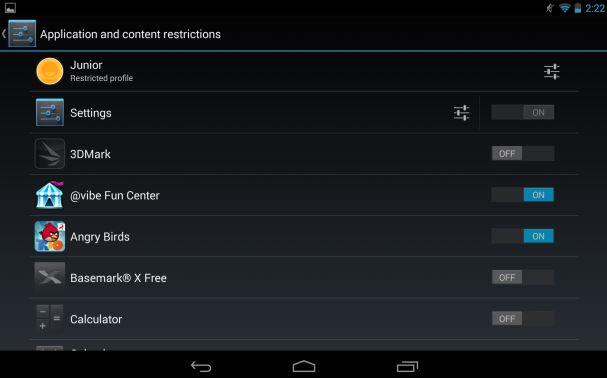
Google added multi-user profiles in the last iteration of Android and it seems the search engine giant wants to enhance that experience through restricted profiles. With the new feature, users can restrict app usage and content consumption on an Android device. So you'll be able to set profiles for each user of the device in case of multiple users. For instance, parents can control what apps or games their kids have access to on their tablets. However, it's worth pointing out that the new restricted feature is only available on Android tablets.


2. Bluetooth Smart Ready


Google seems to be making way for wearable technology by introducing the Bluetooth Smart Ready feature in Android 4.3. Devices running Android 4.3 will now support low-energy Bluetooth Smart accessories like heart rate monitors, pedometers, thermometers and many others. Users can now sync the low energy devices without these affecting the battery usage of the device, as per Google. This feature was missing on Google's mobile operating system, till now. This would also make way for Android friendly wearable tech.


3. Dial-pad Autocomplete


Android 4.3 now adds the autocomplete feature in the dial-pad suggesting contact names or phone numbers when users start keying-in something. This is not a new feature as OEMs like Samsung and HTC had already introduced this feature on to their UI skins running on top of Android, but devices running stock Android were missing it. Users can initiate the feature by going to the app settings and enabling 'Dial Pad autocomplete'


4.Notification Access


The Notification bar has been a popular feature on Android and with Android 4.3, you can control and interact with the status bar notifications. This would allow users to control how notifications are pushed to the primary and connected devices(smart watches, fitness bands). Users will also be able to see all the notifications at one place.


5. OpenGL ES 3.0


If you are a gaming junkie, the new update will definitely excite you. This feature would let Android devices render high quality graphics in games and other apps. Google claims that Android 4.3 supports the new version of the industry standard for high performance graphics. Google also gave a demo of a game showing detailed textures, lens flare, and reflections. This was missing in Android 4.2.


6. Simplified Setup Wizard


Android Jelly Bean now supports corrections to user inputs while signing-in to the device, the first time. This is due to more streamlined user agreements. Now a user can change the information that was keyed-in during the first boot of the device. Google has also introduced faster user switching from the lock screen in case of multiple users.


7. Bluetooth AVRCP


Google devices running Android 4.3 Jelly Bean can sync with Bluetooth enabled car stereos and offer additional functionality. The Bluetooth AVRCP 1.3 version allows stereos to display metadata such as song names when music is being streamed from an Android 4.3 device.


8. Location accuracy features via Wi-Fi scan only mode


Google has now increased the location accuracy of Android devices by allowing location scanning via Wi-Fi.
It now allows apps to get location data through Wi-Fi even when Wi-Fi is set to off and not being used for data access.


9. Keyboard & input


Android 4.3 comes with an upgraded algorithm for tap-typing recognition that makes text input easier while chatting via messages or even while composing emails. It also brings a new emoji keyboard, which we've previously seen in iOS. The update also adds lower latency input for gamepad buttons and joysticks.


10.Hindi support lands on Android 4.3


Google has introduced native local language support to its operating system for Africaans, Amharic, Hindi, Swahili and Zulu. Hindi has finally reached the stock Android operating platform.
With the update, Google has also added support for Hebrew and Arabic (right-to-left) in the home screen, Settings, Phone, People, and Keep apps.


Bonus - New Camera UI


Android 4.3 also offers a new updated Camera app that features a new arch based menu which makes it easier to control and switch camera settings.
How to Get Android 4.3 On Your Nexus Device

How to Get Android 4.3 On Your Nexus Device

Google unveiled the second generation Nexus 7 tablet with Android 4.3 Jelly Bean at an event in San Francisco on Wednesday. The update is an incremental one when it comes to user facing changes, but brings a number of new features under the hood.

While the updated OS will ship with the new Nexus 7 tablet, Google has announced that it has started rolling out the Android 4.3 update to Nexus devices including the original Nexus 7 tablet, the Nexus 10 tablet, and Nexus 4 and Galaxy Nexus smartphones.

The update will be available over the air through the Settings menu on the devices. It will roll out gradually and it could take weeks before it reaches all devices. Our Galaxy Nexus smartphone has not received the update, at the time of writing this post.

You can also force your device to check for updates by going to the Apps menu from the Settings, and finding the Google Services Framework app. You can then tap on 'Clear data' and 'Force stop' options and check for the update again from the About settings menu. This doesn't harm your device in any way and is a completely safe option. However, it's not guaranteed that you'll get the update after performing these steps.

For the more adventurous, the full factory images of Android 4.3 are also available through the Android Open Source Project online, on the Google Developers website. However, you'll need to flash these images manually using special tools and unless you're pretty sure of what you're doing, we'd recommend waiting for the official update to hit your device.

Hugo Barra, Vice President of Android product management at Google also announced that the stock Android Google editions of the Samsung Galaxy S4 and the HTC One would receive the update as well, though he did not specify a timeline
Monday, July 29, 2013
How to Install Android Apps from the Google Play Website

How to Install Android Apps from the Google Play Website


Installing Android apps to your phone or tablet from any computer with a web browser


Google is one of the biggest web service companies around. Their cloud-based apps and services can do some pretty wild and wonderful things, and we're about to look at one of them -- installing apps to your Android device remotely through the Google Play website.

All the complicated issues, like making sure apps are compatible and available for you, or keeping track of which device(s) you're currently using are done by Google behind-the-scenes, leaving us with just a few clicks needed to make some serious magic happen. All you need is an Android device registered with Google Play, and a computer with a modern web browser.

There's a complete video walkthrough of the process after the break, but we'll spend a few minutes and talk about it as well. This is the way I install almost all my apps, because I only have to find them once and can install them to any device I may have in service. It goes a little something like this.

Visit our Google Play mini-site for everything there is to know about Google Play


Point your browser at the Google Play website, and and choose Android apps from the "Shop" drop down in the upper left corner. You're whisked to the Android app store, where you'll find a slew of apps ready and waiting for you to install to your Android device. Finding the right app (the hardest part of the process sometimes) is up to you, but you'll notice plenty of blocks of featured apps, as well as a category list. Once you find the app you need to install, you're almost done!

On the apps page, near the left margin, click the Install button. You're presented with some information about the app you chose to install including those important app permissions and a drop down to select which device to install it to. If you only have one Android device you're all set, but if you have more than one just choose the right one from the list. Once that's done, click the continue button. If it's a paid app you'll be presented with payment options, and it will walk you through the process. 


Afterwards, all that's left is to grab your Android device and enjoy your newly installed app.
Friday, July 5, 2013
How to Run, Download Android Apps for PC (Windows/Mac)

How to Run, Download Android Apps for PC (Windows/Mac)

Have you ever thought to download android apps for pc or run android apps on pc  If not then today I will tell you how to download android apps for pc and after downloading, how to run android apps on pc?
There are three things which must be done to play or run android apps on pc and they are written below:

→ First you have to download android apps for pc which you want to run on your PC or computer.
→ Then you need to download an emulator which will run android apps on PC.
→ Then you need to install android apps on pc and run it using the emulator.

How to download android apps for pc?


There are no special android apps for pc; you can run any android app on PC by using an emulator like Bluestacks or IntelAppUp. Remember, some apps might not be compatible with the software. So downloading android apps for pc is not so tough. Just go to Google and search for the apk file of android app you want to install on PC and then download it. You can skip this step and try alternate method also, which is explained below 

How to Download Emulator to run android apps for pc?

You can download any android emulator for PC either Bluestacks or IntelAppUp from the following links.

Download Bluestacks OR Download IntelAppUp


After downloading install those on your PC and open them now search the android apps you want to play, from search box. By doing this you need not to download android apps for PC as explained in step 1.


How to install android apps on PC?

To install android apps on pc  type in search box of emulator and download those. Otherwise if you have downloaded android apps on pc as explained in step 1, you can open those apps with any of these emulators and they will be installed on your PC.


How to Play or Run android apps on PC?

To run android apps for pc, search the installed file and open it by clicking twice. Your android app will be opened on your PC  Now you can play android apps on pc  Share your views about android apps for pc.


Wednesday, July 3, 2013
How To Run Whatsapp In Your PC

How To Run Whatsapp In Your PC

Today We Are Sharing How To Run Whatsapp In PC their are may ways to run Whatsapp In PC and  their are may appication to run Whatsapp In PC but we came simple methotd to run whats App in your PC.Whatsapp is one of the famous messengers in android for SmartPhone and you can also see Safe Your Android Gadgets With Best Antivirus.

Whatsapp Messenger is currently available for almost all leading SmartPhone Operating Systems like Android, iOS, Windows, Blackberry.when you installing Whatsapp In Your PC You Can Get complete access and send messages to our friends from Yor PC.

Do You Want To Install Whatsapp In Your PC You Can follow Some step:


Install Whatsapp on PC Step By Step:


1.First you Bluestacks Download and

2.Install Bluestacks application on your PC 


3.When Bluestacks Intall your Pc You can search For Whatsapp

4.Now click Whatsapp to download it.

5.Now Click on Whatsapp and fill your details

   And Enjoy
Wednesday, June 26, 2013
How to Check Which Version of Android your Device is Running

How to Check Which Version of Android your Device is Running

There's a quick way to check the version of the operating system that your handset runs on, be it a Samsung Galaxy model or any Android-powered smartphone.


► Access the Settings menu, which is normally found by tapping the Menu button at the bottom left of the front panel and then selecting Settings or System settings. 

► Look for the 'About phone' or'About device' listing and click on it. The actual location will vary from device to device, for example on the 


Galaxy Ace ite is the last item in the Settings list and on the Galaxy S4 it is found within the More tab. A detailed list of your phone's particulars will appear and on this the Android version will be displayed.

The screen above was taken on the Samsung Galaxy Ace. If you're felling brave, click on Software update to see if there is a more recent version of Android you can upgrade to.


Android OS: what's in a name?

There's a logic to the bizarre-sounding names for the different versions of Android; they're all sweets or dessert items and follow an alphabetical order. Here's the full list:


Friday, June 7, 2013
Best Books To Learn Android Application Development

Best Books To Learn Android Application Development

>
Android is a linux based operating system and was built by Android Inc. which was later bought by Google in 2005. The best thing about Android is that it's open-source which means you can easily modify it the way you like without worrying about Google suing you.

Learning Android Application Development is a very exciting and interesting journey. I would recommend everyone who uses computer to learn android because of two reasons. First one being that you can design your own apps and use it in your smartphone or tablet. Second, if your app is unique and interesting, you can put that in Google Play store and earn lots of money
Here is a interesting fact for you : Angry Birds is now a brand worth $5.5 billion and the creators of Temple Run are earning in millions. If they can do it, why can't you? 

Here are the list of some of the best books which you can use to learn about Android and develop apps. Lets begin!

 Android : A Programmer's Guide 1st Edition

This is the best book for a person who is beginning from scratch. I would highly suggest you to buy this book along with the books listed below. This book has content written in a fashion that everyone can understand. You will start from learning how to install Java, Eclipse and setting up the Android Environment and then you will proceed gradually.This book is a must for any newbie.

Buy From Flipkart
 Beginning Android 4 Application Development

This is a great book for somebody who is just about to begin learning about Android. If you are just starting with Android and want to learn some basic things, go for this book. 

Buy From Flipkart
Professional Android 4 Application Development

If you want to learn most of the things related to Android, I would suggest you to go for this book.A great book which covers almost all the aspects of Android Application Development. This covers utilizing various hardware components like camera, NFC, Bluetooth, WiFi etc in your apps.

Buy From Flipkart
 Learning Android Game Programming : A Hands-On Guide to Building Your First Android Game 1st Edition

This book assumes that you already know something about Android Development. This book is an absolute gem for people who are on a low budget but want to create games for Android. You will learn about topics like Animations, Sounds, Physics, Artificial Intelligence which are the key components of a game. If you are aware of Android Development and now want to create some games, go for this.

Buy From Flipkart
So these were some of the books which you could use to learn Android Development. You can buy one book or you can buy all the books, both of the decisions will not go in vain. The books have been listed in a order from absolute beginner to advanced. So one day or the other you are going to need all the books.
If you want to suggest another book which is not present in the list, feel free to leave a comment in the comment section below. If it is good enough, we will credit you and update the list.


I wish you all the best in your Android Adventure and hope that you will soon build an app and contact me to review it!


Friday, May 31, 2013
Samsung Galaxy S4 Auto-Correct Fix Using Jelly Bean Keyboard

Samsung Galaxy S4 Auto-Correct Fix Using Jelly Bean Keyboard

The Samsung Galaxy S4 is a beautifully crafted smartphone and for the most part buyers have been pleased with Samsung’s new focus on software that can be used to interact with everyday life.

One area of concern for many users however has been the company’s implementation of auto-correct standards.

As a user types using the Galaxy S4 they are met with word suggestions that can break the flow of the users typing. On standard Google Android 4.2 Jelly Bean devices the auto-correct function is more well rounded and doesn’t affect the flow of a users typing.


Not happy about the current state of Samsung Galaxy S4 auto-correct a third-party developer is offering a way to receive better auto-correct support.

Android developer VLLWP has ported the Jelly Bean keyboard to the Galaxy S4 along with several improvements to the original design.

While there are various keyboard alternatives via the Google Play store the Jelly Bean Keyboard is free and offers the type of keyboard functionality we have come to expect from the stock version of Google Android Jelly Bean.

The keyboard features ads but only on the settings page. It also features various languages support, offers emoji icons, providers users with themes support and dives into advanced settings.

If you want even more out of your keyboard you can purchase the “Pro” version of the app which features no ads, more themes, better customization, more layout options, and gesture support.

Users can even add a row of numbers to the standard keyboard layout, a feature that is sorely missing on the Samsung Galaxy S4 Keyboard.

The Jelly Bean Keyboard Pro is modestly priced at $2.99.

Give the free version of the Jelly Bean Keyboard app a try and let us know what you think about the smartphone app.
Thursday, May 30, 2013
Android: How to Change the Google Account without a Hard Reset

Android: How to Change the Google Account without a Hard Reset

This is quite an old trick but it is very very useful trick for them who changes their google id from GOOGLE PLAY STORE  Again and again so if you want to switch your google account in GOOGLE PLAY and if you do not want to RESET PHONE SETTINGS then you can follow this tip to add or change google account from GOOGLE PLAY.


Instructions:(You must have a rooted Phone)

1)Download ES FILE EXPLORER or ROOT EXPLORER from Market
2)then go to INTERNALMEMORY/data/system/ and Delete Accounts.db file
3)Restart your phone and Done.
 

Comment if you face any problem 
I have used it a number of times..
Friday, May 17, 2013
Google Launched new Unified Messaging Sevice “Hangouts” for Android,iOS and Chrome

Google Launched new Unified Messaging Sevice “Hangouts” for Android,iOS and Chrome

Google has launched Hangouts, a new unified messaging service that replaces numerous Google messaging service such as Google Talk, Google Voice and Google+ hangouts.  Like iMessage from Apple, Google’s this new service will include all instant messaging capabilities like chat, Voice call and Video call. And the much-anticipated SMS integration will be coming to Google Hangouts soon.

Hangouts will be available on the most major platforms including iOS, Android and Chrome (Web).

What is Hangouts? 

Hangouts is a new standalone application that bring conversations to life with photos, emoji, and even group video calls for free.
In this new Hangouts, Group conversations are better than ever. You can send HD Photos and emoji and messages anytime in the Hangout to friends even if they are online right now.

Also, just click the video icon to add your friend to Hangout Video call when you are text chatting with them easily. You can add up to 10 friends to single hangout session. Video call apps let you watch YouTube videos together, capture a special family moment with a photo, collaborate remotely through Google Drive and much more.


The best feature of this Hangouts is the Cross platform support. Don’t have to left anyone when you arrange Hangout, You can connect with your friends even if they are in the different platforms like computer, Android, iOS. It is all possible in this new unified “Hangouts” messaging service.

All conversations are stored and can be accessed via any platforms using hangouts history. For example, if you are chatting with your Android phone with your family, those messages can be accessed when you login from the computer and vice versa. Also, you have the option to delete those history.

Google’s Vic Gundrota said on stage today at Google I/O 2013,

“Of course we give you the ability to delete those things. But having the ability so save those conversations, I think is delightful and amazing.”
The best Features of Hangouts

Hangouts stay in sync across devices so you can start or continue them anywhere.

    1,Choose from hundreds of emoji to help you make your point
    2,See what you talked about in the past, including shared photos and your video call history.
    3,Get notifications just once. Once you see an alert, you won’t see repeats on your computer or other Android devices.
    4,View collections of photos shared from each of your Hangouts.
     5,Snooze notifications at times when you’d prefer to be undisturbed by alerts.

Get Hangouts for Android, iOS, and Chrome
Copyright © 2012 Blogger Tips and Tricks All Right Reserved