New Post

Rss

Saturday, May 25, 2013
The Top 6 Ways to Accept Online Payments

The Top 6 Ways to Accept Online Payments

If you want to do business online, you need to find an easy and straightforward way of processing credit cards and other types of payment so that people can actually pay for the products or services they want to buy from you. Here are the best ways to do that.


1. Merchant Accounts

 
Set up a merchant account with your bank (or the bank that will offer you the best rates). This, unfortunately, can be a time-consuming process. There are credit and background checks involved; you need to tell your bank what you’re selling and how much of it you think you will sell.

On the other hand, once the fees have been deducted, the money you make from your sales will be deposited directly into your account. You don’t have to wait for a third party to process it.


2. PayPal

 
PayPal is probably the easiest online payment merchant to work with. It is definitely the most popular, and that means that it is one of the most trusted. The great thing about PayPal is that you can take payments from anybody. You don’t have to go through any sort of background or credit checks. You can start accepting payments within minutes of setting up the account.

PayPal also offers a debit card that is linked directly to your account so that you can use the money you earn as soon as it is paid to you. You don’t have to wait for it to be transferred to your bank (unless you want to).

3. Sell Through a Third Party

 
This is a fancy way of saying that you should sell your products through a service like Amazon. The store takes on the responsibility of processing the payments. You just wait for the money to be sent to you.

This is a good choice because when you sell through a third party, you get to have that third party’s reputation backing up your products. You’ll also benefit from whatever traffic they bring in for products that relate to yours so you stand to sell more of your own stuff. At the same time, actually getting your money can take a while, and they don’t accept all products into their ranks.

4. ACH Payment Processing (eCheck)

 
ACH Payment processing allows you to accept money directly from someone’s bank account without requiring a credit card. You simply need the information on the check that they would have written to you. The process is overseen by the National Automated Clearing House Association, and they will allow you to use the money you bring in for a variety of purposes (including direct deposits into your bank account).

The easiest way to take these kinds of payments is to set up the account with your own bank—it saves the time of having to be approved for and open an account somewhere else.


5. Mobile Payment Processors

 
Even if your business isn’t web-based, you can accept payments online thanks to mobile payment merchants. The best example of this is Square, which has become incredibly popular over the last couple of years. You register for an account with a mobile payment processor, get the card reader and plug it in to your smart phone or computer, and viola! You can accept payments.

The best thing about accepting payments this way is that many of the different mobile payment processors will also allow you to accept checks—you just scan in the check and you’re done! Some will even have code in place that will allow you to track cash transactions.

These are the five best ways to accept payments online. The method you choose is going to depend upon what kind of business you are running and where you are running it. Good luck!
Thursday, May 23, 2013
5 Crazy Offline Tips For Your Blog Promotion

5 Crazy Offline Tips For Your Blog Promotion

Most of the bloggers share you  the online ways like using social sites, forums  etc for  your  blog promotion. Here I want to share you some offline ways for your blog  promotion.  I don’t  guarantee you will get tons of visitors in a day using  these ways. But some what these methods will increase  your blog visitors.
So let’s start.


 1. Street Wall

This is the effective way for your blog promotion. How to do,I will tell you. First make a simple poster with your blog URL and appealing title and description. Then find the street where daily lots of people walks. Stick that poster on the wall of the street. Its obvious many people will see that poster. If you have given effective title and description on your poster then without doubt they will check your blog URL when they reach home. If your blog has good content then they will be your regular visitors.

2. Public Toilet

Yes, public toilet is another good place for your blog promotion. I have seen in our country’s public toilet people are writing different thing on the toilet wall. So you can also make use of it. Leave your blog URL on the wall of public toilet. Some curious guys may check your blog URL to know more about your blog.

3. Mouth Promotion

Another good way for your blog promotion. Tell something good about your blog to your friends and encourage them to visit the blog. Also you can try this method to strange people (They may think you have become crazy, that you are sharing something to strange people but that’s not a big deal because you are already crazy in blogging J ).To clear their curiousness they will surely check your blog.

4. Use Cyber

Visit the different cyber station and try to set your blog as the homepage in the browser of every computer. Because daily lots of people use the cyber station computers. When they open the browser, automatically they will land to your blog homepage. If they found your blog interesting and helpful then they will never mind to visit back your blog next time.

5. Newspaper Ads:

If you are able to spend some cash for your blog then Newspaper ads can be the good way for your blog promotion. Select the Newspaper that has lots of readers and subscribers. Make your blog ads interesting like and give the ads to run on the Newspaper and see the changes.

These are some of the offline ways for your blog promotion to increase your blog traffic. If have some other ways then please share with us on Comment box.
Wednesday, May 22, 2013
HTC Android Smartphones and Tablets

HTC Android Smartphones and Tablets

A Taiwanese smartphone manufacturer, HTC has produced a large number of Android phones including the Droid Incredible, HTC Sensation and HTC Evo, as well as Android tablets like the HTC Flyer and HTC Jetstream.

In addition to manufacturing handsets and tablets, HTC customizes the Android operating system on their devices by using their HTC Sense user interface.

HTC was the first company to build a Nexus device. Released on January 5, 2010, the Nexus One was a flagship Google phone that utilized a version of Android that was not loaded with the HTC's Sense interface. 


HISTORY

HTC was founded in 1997 by Cher Wang, HT Cho, and Peter Chou. Initially a manufacturer of notebook computers, HTC began designing some of the world's first touch and wireless hand-held devices in 1998. The company has a rich heritage of many "firsts", including creating the first Microsoft-powered smartphone (2002) and the first Microsoft 3G phone (2005). Their first major product was made in 2000 and was one of the world's first touch screen smartphones. The Palm Treo 650 and the iPAQ were created by HTC. They started producing 3G-capable phones in early 2005 and made the world's first Android phone in 2008, the HTC Dream (also marketed as the T-Mobile G1). It was first released in the United States for pre-order through T-Mobile USA on September 23, 2008, and became available in U.S. T-Mobile stores on October 22, 2008.The G1 was available in the UK several days after its USA launch, and has since been introduced in many countries including Australia and Singapore. In 2009, the company launched the HTC Sense interface for the platform with the HTC Hero.
In March 2010, Apple Inc. filed a complaint with the US International Trade Commission claiming infringement of 20 of its patents covering aspects of the iPhone user interface and hardware. HTC disagreed with Apple's actions and reiterated its commitment to creating innovative smartphones.HTC also filed a complaint against Apple for infringing on 5 of its patents and sought to ban Apple products imported into the US from manufacturing facilities in Asia. Apple expanded its original complaint by adding two more patents.
In June 2010, the company launched the HTC Evo 4G, the first 4G-capable phone in the United States.In July 2010, HTC announced it would begin selling smartphones in China under its own brand name in a partnership with China Mobile. In 2010, HTC sold over 24.6 million handsets, up 111% over 2009.
HTC was named the "Device Manufacturer of the Year" for 2011 by the GSMA at the Mobile World Congress on 16 February 2011. In April 2011, the company's market value surpassed that of Nokia to become the third largest smartphone maker in the world, behind only Apple and Samsung.
On July 6, 2011 it was announced that HTC would buy VIA Technologies' stake in S3 Graphics, thus becoming the majority owner of S3. On August 6 2011, HTC acquired Dashwire for $18.5M. In August 2011, HTC confirmed that HTC will be entering a strategic partnership with Beats Electronics by acquiring 51 percent of Beat's shares.
In the 2011 Best Global Brands rankings released by Interbrand, HTC was listed at #98 and valued at $3.6 billion.
Based on researcher Canalys, in Q3 2011 HTC Corporation became the largest smartphone vendor in the U.S. by 24 percent, ahead of Samsung's 21 percent, Apple by 20 percent and Blackberry just 9 percent. HTC Corporation made different models for each operator.

 
HTC Android Smartphones:

    HTC One
    HTC One X
    HTC One S
    HTC One V
    HTC DNA
    HTC Evo 4G
    HTC EVO Shift 4G
    HTC EVO 3D
    Droid Incredible
    Droid Incredible 2
    Droid Incredible 4G
    HTC Amaze
    HTC Thunderbolt
    HTC Rezound
    HTC Sensation
    HTC Sensation XE
    HTC Sensation XL
    Inspire 4G
    HTC Merge
    Google Nexus One
    myTouch 4G
    myTouch 4G Slide
    myTouch 3G
    myTouch 3G Slide
    Holiday
    HTC Aria
    HTC ChaCha
    HTC Desire
    HTC Desire s
    HTC Droid Eris
    HTC Hero
    HTC Legend
    HTC Rhyme
    HTC Salsa
    HTC Wildfire S
    G1
    G2
    Hero S
    Wildfire S
    HTC Vivid

HTC Android Tablets:

    HTC Flyer
    HTC Jetstream

Samsung Galaxy S4 Quick Review

Samsung Galaxy S4 Quick Review

If the HTC One was a glimpse of Android's promising future of thoughtfully crafted hardware paired with elegantly designed software, the Samsung Galaxy S4 represents its poorly conceived and shoddily constructed past. Like countless Android handsets before it, the Galaxy S4 is spec and feature-rich, but limited by its cheap, flimsy hardware and unnecessarily bloated suite of proprietary software. It's not a bad phone — in fact, there's plenty to like — it simply lacks the level of polish and consideration found in a growing number of its competitors.
At first glance, the Galaxy S4 appears to be near-identical to the Galaxy S III, and even upon closer inspection, the variations may be tough to notice. Both are constructed almost entirely of plastic and despite a screensize increase from 4.8-inches to 5-inches, the Galaxy S4 is only slightly bigger thanks to its slimmer bezel. Instead of rounded edges and accents, the Galaxy S4 uses flat surfaces and straight, faux-metallic trim, giving it a more modern look. But any perception of the Galaxy S4 being a premium device is lost the moment you touch it. At 4.6 ounces, it's light, which in most cases would seem like a positive quality, but when combined with its thin plastic casing, makes the S4 feel almost like a toy. What's worse, it's coated in a high-gloss finish, which feels slippery in your hand and gathers dirt and smudges easily.

With devices from Apple, HTC, and Nokia brandishing anodized aluminum and ceramic casing, the Galaxy S4 looks cheap and unimaginative.
But despite its lackluster industrial design, Samsung never skimps on specs and the Galaxy S4 comes loaded with some of the advanced components on the market. While the processor type will vary by region and model, versions sold in the U.S. come equipped with a 1.9GHz quad-core Snapdragon 600-series CPU with 2GB of RAM. In benchmark testing, it delivered performance gains of 22% over the HTC One and outpaced even tablets like the Nexus 10. The 5-inch display is a gorgeous 1080p Super AMOLED panel with a pixel density of 441ppi — just shy of the HTC One's 468ppi screen — but boasting some of the brightest, most colorful visuals you can find on a smartphone. One of the drawbacks of Super AMOLED, of course, is that colors can appear oversaturated at times, but ultimately it's a matter of preference. Despite all of its high-end specs, however, the Galaxy S4's battery life is exceptional, making it through a day's use without having to recharge — even with rigorous data consumption.

The S4's highlight feature, however, is its camera. While the front-facing camera is expectedly mediocre, the rear-facing 13-megapixel camera is by far the best of any smartphone I've used. It produces images with an incredible level of detail and fantastic color balance. Like most mobile cameras, it struggles with low-light conditions and can be slow to focus, but in most other settings it performs exceptionally. Samsung has also bundled in a suite of photo modes that not only enhance photos for night, portraits, and HDR, but also new enhanced features, like dual-shot which captures images from both the front and rear cameras for a picture-in-picture composite. There's also modes like Best Face, which takes five frames and allows users to find and meld those with the best expressions for a perfect shot. Best Photo acts similarly but instead of combining multiple frames, allows users to capture several images instantaneously and pick the best. Sound & Shot allows you to record a few seconds of audio with your photo, which is fun for novelty, but not especially useful.

But the Galaxy S4 also uses its cameras for more than just photography and video recording. Utilizing the front and rear cameras along with other sensors, the Galaxy S4 is capable of detecting a user's face and certain hand motions to control apps. Smart Pause, for instance, automatically pauses a video whenever the user looks away from the screen. Air View and Air Gesture scroll through windows with just a wave of the hand or preview an item by hovering your finger over the screen. But as futuristic and cool as these features might sound, they don't quite work as well as one would hope. The face and gesture detection tools only work with certain apps, and there's often a delay between your motions and what appears on screen. When you wave your hand, the on-screen action lags behind and in most cases scrolls too far. Smart Pause struggles to keep track of the user and only really works when you look at the screen dead-on and turn your head sharply. All incremental motions and angles in between cause issues.

The biggest problem with the face and gesture-detecting software, however, is that it's attempting to solve issues that don't really exist. As a handheld device, the Galaxy S4 is most commonly resting in your palm, where a quick flick or tap of the thumb is the fastest and most precise input method. Is waving your hand or tilting your head really a better way to scroll? In all but a small array of use cases, probably not.

Similar issues carry over to Samsung's array of pre-installed apps. As part of Samsung's efforts to market the Galaxy S4 as a "Life Companion," it has developed a collection of baked-in software to track your exercise and diet, share media with other Galaxy users, offer translation services while traveling, and maximize productivity. S Health acts as a pedometer, calorie counter, and exercise tracker, while S Voice is Samsung's Siri-style voice assistant. S Translator allows you to convert written and spoken words into a select number of languages and Group Play pairs multiple Galaxy devices together to share media, photos, and more. There are also other Galaxy series staples like S Memo and Multi Window, providing hand-drawn notes and the capacity to run two app windows simultaneously in a splitscreen mode. Like the HTC One, the Galaxy S4 comes with a built-in IR blaster for control of your home entertainment center.
While each is great for bulletpoints on marketing materials, their utility, performance, and quality varies drastically. S Health offers an impressive range of functions for tracking your daily activity and diet, it lacks the powerful food and exercise data found in popular third-party apps, like Nike+ and MyFitnessPal. S Translator is also limited to only select supported languages, whereas other apps available on Google Play are more robust. My favorite of the pre-installed software is OpticalReader, which can digitize text that's captured in a photo, translate it, or even read it aloud, but even it is only useful for very specific scenarios.

But whereas downloadable apps allow you to install and uninstall based on your needs, Samsung's software is impossible to remove without rooting and consumes precious storage space. All told, Samsung's software takes up nearly half of the 16GB capacity, leaving little room for media and other apps. Overall storage can be expanded via microSD and select carriers have begun offering 32GB models, but it's still less than ideal to have valuable storage space wasted on apps you don't use.


The Verdict
The Galaxy S4 is an ambitious smartphone with powerful specs and a laundry list of features. But in its pursuit of creating the "everything" device, Samsung has neglected crucial areas, like build quality and software polish. If you're in the market for a smartphone, the Galaxy S4 isn't a terrible choice, but for your several hundred dollar investment, you deserve better.


Specifications

DISPLAY     Size     4.99 inches (12.67 cm)
Technology     Super AMOLED, 16M colors
Resolution     FHD ie. 1080 X 1920 pixels @ 441 ppi
Type     Capacitive, Multitouch
Protection     Corning Gorilla Glass 3
EXTERIOR     Dimensions     136.6 x 69.8 x 7.9 mm
Weight     130 gm
Sensors     Proximity & Ambient Light Sensors, IR remote & temperature sensor
Colors     Black Mist, White Frost
PROCESSINGPOWER     Processor     1.6 GHz quad-core Cortex-A15 & 1.2 GHz quad-core Cortex-A7 (India)/ 1.9 GHz Krait 300 [depending on the region]
Chipset     Exynos 5 Octa 5410 (India)/ Qualcomm Snapdragon S4 Pro [depending on the region]
GPU     PowerVR SGX 544MP (India)/ Adreno 320 [depending on the region]
MEMORY     System Memory     2 GB of LPDDR3 RAM
Internal Storage     16 GB (India)/ 32 GB / 64 GB
Expansion     microSD, up to 64 GB
SOFTWARE     OS     Android v4.2.2 (Jelly Bean)
User Interface     TouchWiz UI
CONNECTIVITY     SIM     Micro SIM, single slot
Operatingfrequencies     GSM – 850, 900, 1800, 1900 MHzUMTS – 850, 900, 1900, 2100 MHzLTE – 800, 900, 1800, 2600 MHz
GPRS     Yes
EDGE     Yes
3G     42 MBPS HSDPA, 5.76 MBPS HSUPA
4G     LTE Cat 3 [100 MBPS downloading, 50 MBPS uploading]
Wi-Fi     Wi-Fi 802.11 a/b/g/n/ac[HT80], DLNA, Wi-Fi Direct
GPS     Yes, with A-GPS support and GLONASS
Bluetooth     v4.0 [BLE]
USB     microUSB (MHL) v2.0, USB Host
NFC     Yes
CAMERA     Primary     13 megapixels
Secondary     2 megapixels
Video     Up to 1080p @30 fps (Primary), 1080p @30 fps (Secondary)
Flash     Single LED
Features    

    Drama Shot [take more than 100 shots in 4 seconds]
    Erase mode
    Cinema Shot
    Zero shutter lag
    BSI sensor for better low light photography

OTHERFEATURES    

    S-voice drive
    Optical Reader
    Adapt Display
    Glove friendly display glass
    Group Play
    Dual video call
    Air gesture [navigate without touching the display]
    S Health
    Air View [using fingers]
    S Translator
    Group Play
    Samsung Knox
    Samsung Home Sync [1 TB]
    Smart Scroll
    Control TV & play games with the integrated IR Remote
    Other sensors: Accelerometer, RGB light, Digital compass, Gyro, Barometer, Temperature & humidity sensor

PRICE     Approx. 38,990 Rs ~ 720 USD


Friday, May 17, 2013
Google Launched new Unified Messaging Sevice “Hangouts” for Android,iOS and Chrome

Google Launched new Unified Messaging Sevice “Hangouts” for Android,iOS and Chrome

Google has launched Hangouts, a new unified messaging service that replaces numerous Google messaging service such as Google Talk, Google Voice and Google+ hangouts.  Like iMessage from Apple, Google’s this new service will include all instant messaging capabilities like chat, Voice call and Video call. And the much-anticipated SMS integration will be coming to Google Hangouts soon.

Hangouts will be available on the most major platforms including iOS, Android and Chrome (Web).

What is Hangouts? 

Hangouts is a new standalone application that bring conversations to life with photos, emoji, and even group video calls for free.
In this new Hangouts, Group conversations are better than ever. You can send HD Photos and emoji and messages anytime in the Hangout to friends even if they are online right now.

Also, just click the video icon to add your friend to Hangout Video call when you are text chatting with them easily. You can add up to 10 friends to single hangout session. Video call apps let you watch YouTube videos together, capture a special family moment with a photo, collaborate remotely through Google Drive and much more.


The best feature of this Hangouts is the Cross platform support. Don’t have to left anyone when you arrange Hangout, You can connect with your friends even if they are in the different platforms like computer, Android, iOS. It is all possible in this new unified “Hangouts” messaging service.

All conversations are stored and can be accessed via any platforms using hangouts history. For example, if you are chatting with your Android phone with your family, those messages can be accessed when you login from the computer and vice versa. Also, you have the option to delete those history.

Google’s Vic Gundrota said on stage today at Google I/O 2013,

“Of course we give you the ability to delete those things. But having the ability so save those conversations, I think is delightful and amazing.”
The best Features of Hangouts

Hangouts stay in sync across devices so you can start or continue them anywhere.

    1,Choose from hundreds of emoji to help you make your point
    2,See what you talked about in the past, including shared photos and your video call history.
    3,Get notifications just once. Once you see an alert, you won’t see repeats on your computer or other Android devices.
    4,View collections of photos shared from each of your Hangouts.
     5,Snooze notifications at times when you’d prefer to be undisturbed by alerts.

Get Hangouts for Android, iOS, and Chrome
Bye Paypal! Now Send Money as an email from Gmail by Google

Bye Paypal! Now Send Money as an email from Gmail by Google

At Google I/O conference , they announced that Now Gmail users can send money from Gmail as an attachment to anyone for free. For that, Google has integrating their Google wallet service to Gmail. Before now, Google wallet has been only used in the mobile phone to pay for purchases.

Google Wallet web service integration with Gmail allows you to send money quickly to your friends and family directly within Gmail. Even If the receiver don’t have the Gmail address, you can send money from Gmail securely. You can use this service for free to make payments, if your bank Accounts attached to Google Wallet or if you have a balance in Google wallet. Low fees apply to send money using your linked credit or debit card.


How to Send Payments from Gmail

This Google wallet service is integrated in the Gmail attachment options. That is you can attach money in your email like attaching images and files in your message.

To send money, hover over the attachment paperclip, then click the $ icon to attach money to your message, enter the amount you wish to send, and then press send. It is pretty much easy and safe.

For now, this feature can be only used in Desktop. And the email transactions only work in US. If you wan to use Google wallet from your mobile or tablet, Go to http://wallet.google.com to access this service. And setup the Google wallet account. Setting up the Wallet service is pretty simple. Just accept the terms, and enter your credit or debit card details and finish the setup. Google will show you your personal address from Google Account, If you want to add a new address, you can change it in the setup process.

Google also announced that, this feature will be available for all US Gmail users in coming months who are over 18 years old. You can also get earlier access to this feature, if you have received money from Google Wallet Gmail service.
Thursday, May 16, 2013
How to Make Money with Protypers Review

How to Make Money with Protypers Review

EARN OVER $200 US DOLLARS A MONTH

Welcome Back, Nice to see you again, I found a this program recently on the web that promised to give you the Online Business opportunity (Data Entry) for FREE, Earn up to $200 USD per month?? Is it True?

Let's SEE...

What is ProTypers ??

ProTypers is a conglomerate of data entry specialists. We work primarily on converting scanned documents from image-to-text for institutions in North America and Europe. We also offer our services to Neural Network Text Imaging developers and provide CAPTCHA decoding for the visually impaired (blind).


 We’re currently hiring data entry personnel from all over the world. The only requirement to work for us is to have a computer, an internet connection and the ability to type over 30 Words per Minute. You decide when to work and for how long. The faster you type, the more money you earn.
ProTypers.com is ideal for:
sign up

    - Mothers that stay at home.
    - Parents that need a second job.
    - Students.
    - People in between jobs.

How much you earn depends on how much you work. Our top typers earn between $100 and $250 each month! Our Rates start from $0.50 for each 1000 words typed and can go as high as up to $1.5 for each 1000 words typed. We Pay through Debit Cards, Bank Checks, Paypal, Webmoney, Liberty Reserve and Western Union.

How Do I Earn Money?

In ProTypers.com, the money you make will depend on how much you work and at what time you work. The amount of money that you earn will depend on Rates. A Rate will show you the amount of money you will earn if you type in 1000 images. For example: If you have a Rate of $0.90 for 1000 images, then you will earn $0.90 when you type in 1000 images. The Rates will be changing every hour. You can check the rate for every hour of the day in the “Solve Images” and the “Statistics” page. The rate for the current hour will be highlighted.

How To Earn More Money ?

This is the most tricky part, the way that they promised to let you earn over $200USD Monthly, is to refer others, which need to give a lot of effort to archive it...
Here you will earn 10% commission of the people that you invite to work in ProTypers. You will simply need to provide them with an affiliate link and they will be counted as one of your referrals. 


Let us Calculate it :

If you earn about $0.50 per day

- 0.5 x 30 = $15

You will earn $15 per month

If you refer 10 people to join, & you earn 10% of their total earnings.

- 0.5 x 30 = $15
- 0.5 x 10% x 10 = $15

You will earn roughly $30 per month

How about you refers 50 people to join??

- 0.5 x 30 = $15
- 0.5 x 10% x 10 = $15
- 0.5 x 10% x 40 = $60

$15 + $15 + $60 = $90 USD
sign up

You will earn $90 per month

And this is definitely a long-term business to invest in, check it out
If you are interested, Click Here
Wednesday, May 15, 2013
How I moved my Blogger Blog to WordPress

How I moved my Blogger Blog to WordPress

As promised, I am letting you all know how I moved from Blogger to WordPress, and what I did to make the move as painless as possible! So without further adieu…

Moving from Blogger to WordPress: A Step by Step Guide

 (These instructions assume you have your own domain already. If you don’t own a domain name you can purchase one when you purchase hosting. You can also skip step 4.)

Step 1: Purchase hosting.

I purchased hosting from SiteGround for my new WordPress blog. Although you can purchase hosting at whichever host provider you prefer. I chose SiteGround because I already have an account with them, and they have been good to me! Plus they have a one-click WordPress installation. No uploading files through your FTP Manager, no creating document roots, no complicated instructions at all. I just had to click install, change a few simple settings and it was done for me! How convenient is that?! You can view Siteground’s installation tutorial here to see just how easy it is! I would also recommend GoDaddy as well. I have previously used GoDaddy’s hosting service and didn’t find it too terribly difficult to navigate.


Step 2: Install WordPress.

Once you have secured hosting, I recommend installing WordPress on your site at this point. Don’t worry this WILL NOT effect your current blog. It will still be visible on Blogger until you redirect your domain to your new blog. (I recommend doing this now because once the redirect is processed your WordPress site will be seen by visitors versus a landing page from the host provider.)


Step 3: Export your Blogger content.

From your Blogger Dashboard, click “Settings” >> Click “Other” >> Click “Export Blog” >> Click “Download Blog

Again, don’t worry this WILL NOT delete your blog or your content. It simply downloads all your content (posts, comments and pages) into a file for safe keeping should something go wrong while importing to WordPress.

Step 4: Redirect your domain.

You need to update your “Nameservers” for your domain in order to redirect your domain to your new WordPress site. I purchased my domain through Blogger so I will give instructions here on how to update your “Nameservers” if you purchased your domain through Blogger.

You will need to access the cPanel for your domain, to do that you need to go to:

http://google.com/a/cpanel/yourdomain.com


Changing “yourdomain.com” to your own domain. You will be directed to log into Google Apps. If you do not have an administrator account set up, it usually defaults to bloggeradmin@yourdomain.com. If for some reason you cannot log in, follow the steps to recovery your log in information, which will be sent to the email address used when you purchased your domain.

Now that you are logged in, click the “Domain Settings” Tab >> Click “Domain Names” >> Click “Advanced DNS Settings

Here you will be given your log in information to change your DNS Settings. Domains purchased through Blogger are usually through GoDaddy or Enom.

Click “Sign in to DNS console“, and use the information provided to log in so you can update your “Nameservers”. I am not sure how the Enom console is set up, but for GoDaddy you need to click “Set Nameservers“.

You will need the Nameservers for your hosting provider. Usually this information can be found in the sidebar of your hosting account’s cPanel. Nameservers will vary from host provider to host provider, but the SiteGround Nameservers look like this:

NS1.SITEGROUND205.COM
NS2.SITEGROUND205.COM

Make sure you select “I have specific nameservers for my domain.” You just need to delete the Nameservers that currently exist, and replace them with the Nameservers for your host provider, then click “OK“. Congrats! Your nameservers have been updated. Propagation can take anywhere from 2 hours to 48 hours, while usually NOT that long, just be patient for the redirect to process.


Step 5: Import your content.

Once the redirect is processed and you can see your new WordPress site when visiting your URL, you are ready to import your content! There are TWO ways to do this, and I will give you the instructions for both. They are equally simple but either way has it’s “cons“.

Use the Blogger Importer. You can use the Blogger Importer by clicking “Tools” on your WordPress Admin Sidebar >> Click “Import” >> Click “Blogger“. Note: If you use the Blogger Importer you will need to be logged into the Google Account in which you manage your Blogger blog.

You will be asked to install the Blogger Importer plugin before proceeding. So go ahead and install the plugin and then return to the Import section.

Once you run the Blogger Importer, you will be prompted to grant WordPress access to your Google Account. You will need to grant access so the Importer can import your content. After granting access you will be redirected to a page listing your blog, the number of posts and the number of comments to be imported. Click “Import“. If you manage more than one Blogger blog under your Google Account, make sure you import the correct one!

Depending on how much content you have, will depend on the length of time it takes to import.


CONS OF USING THE BLOGGER IMPORTER:

#The Blogger Importer does not handle Blogger Static Pages. So if you have Static Pages on your Blogger blog, you will need to manually create them again, in WordPress. This could be as easy as copying and pasting from your Blogger Pages to your new WordPress Pages.

#The Blogger Importer removes the formatting for ALL of your posts, making your nice, neat paragraphs one big paragraph.

PROS OF USING THE BLOGGER IMPORTER:

#Quick and easy.

# All of your Blogger labels are uploaded automatically as Categories.

→ Convert your Blogger file into a compatible WordPress file.


Trust me it is A LOT easier than it sounds… There’s an App for that! You can use this Blogger to WordPress Conversion Utility, and all you need to do is upload your Blogger file that you obtained in Step 3, and the Conversion Utility will convert and download a WordPress compatible file for you!

Then you would use the WordPress Importer (instead of the Blogger Importer) to upload your new file to WordPress.

CONS OF CONVERTING YOUR FILE AND USING THE WORDPRESS IMPORTER:

#Your Blogger labels do not upload  as Categories and all posts are left “Uncategorized”.

#The WordPress Importer deletes formatting on SOME of your posts, versus the Blogger Importer, which removes formatting on ALL your posts.

PROS OF USING THE WORDPRESS IMPORTER:

#Quick and easy.


#Converting your file, and uploading keeps your pages in tact. So it will import your Blogger static pages!

So as you can see both options are simple, but the real decision is: do you want to create all new static pages for your site, OR do you want to re-categorize all your posts? I am a stickler for formatting, I like nice clean breaks, justified text and organized paragraphs, so I chose the latter. I thought it would be easier to re-categorize all my posts versus re-formatting them all! (I did have to re-format some but not all, and I am sure there are some that I missed, but I will get to it eventually!) I used a Bulk Category Creator, to create categories for all the labels I had over at Blogger. I just copied all of my labels and pasted them in the plugin, and voila! I used the Quick Edit feature on each post from the “All Posts” screen to re-add the posts’ categories. It was a lot of work, but better than having to re-format all my posts!

CONGRATS you are done with your move from Blogger to WordPress! Here are some other things to consider:

→ Design. You can peruse the internet for free WordPress themes, or you can purchase premium themes like Genesis Framework and Child Themes from StudioPress, or The Thesis Theme from DIY Themes. If you aren’t savvy with coding or just can’t seem to find a theme you like, you can hire a professional like me to create custom design for you!

→ Feeds. You will need to update your feeds such as your RSS feed, your email subscription feed, Networked Blogs, etc. After all, you will want all of your loyal followers and readers to come with you! …and those GFC Followers, they won’t miss too much, you will still appear in their Google Reader (if you already had a domain – if you had a blogspot domain, I am not sure, but I don’t think you will. {sad face}

→ Sidebar. Unfortunately, you don’t get to “bring” your Blogger sidebar with you to your new WordPress blog, so you will want to add all of your sidebar goodies from your Blogger blog to your new WordPress blog.

I think that’s all folks! My perfectly imperfect Blogger to WordPress Step by Step Guide. I hope you enjoyed and that this assists you in completing your own Blogger to WordPress Migration!

Cheers!

Don’t forget to share the love! ↓


Tuesday, May 14, 2013
How To Automatically Redirect A Blogger Blog To Another URL

How To Automatically Redirect A Blogger Blog To Another URL

There are a number of reasons you may want to automatically send visitors to your blog to another URL or from one blog to another.For example if you moved your blog, if you had two blogs and wanted to focus one just one and cover both topics.Automatically directing visitors to another URL is actually quiet easy and only requires a snippet of code added to the top of the template.In this post i will show you the code needed to automatically Redirect from a Blogger Blog to any other URL.


Firstly i should mention some people don't like to be redirected and you should only direct to a site with similar content.If you redirect people to sales pages, sites with adult content or anywhere the user is uncomfortable with it will put your Blogger account in jeopardy.For this reason the code i have in this post can be set to Redirect in an amount of time set by you.So you can set the code to redirect after 5 seconds and place a message at the top of the blog telling visitors they will be redirected.
 

With that in mind i have created a test blog that will direct to Google.Com so you can see how it works.Follow the link and wait 5 seconds for the redirect.

Add Auto Redirect Code To Blogger

Step 1. In Your (New Design) Blogger Dashboard Click The Drop Down Menu For Your Blog > Choose Template > Then Edit Html > Now Proceed > Tick The Expand Widget Templates Box.


Step 2. Find the following piece of code in your blogs Html :
(It's Near The Very Top)

<head>
Step 3. Copy And Paste The Following Code Directly Below / Under <head>
<meta content='5;url=http://apslogo.blogspot.com/' http-equiv='refresh'/>
Important -
1. Replace http://www.apslogo.blogspot.com/ In Blue With The URL You Want To Forward To.
2. The Number 5 In Red Sets The Amount Of Seconds Before The User Is Redirected Change This To Suit.

Step 4. Save your template and your blog will now redirect after the time you set.Once again remember don't use this to send people to sites unrelated or with spam as your entire Blogger Account may be effected.

If you give at least 5 seconds and add a clear message at the top of the blog there should be no trouble.Make sure to check out more of our Blogger Help Posts

Add Your Comments, Views And Questions Below.


Monday, May 13, 2013
Get approved by Google AdSense using Blogger

Get approved by Google AdSense using Blogger

I am going to share some tips with you to get approved by AdSense using blogger. Every Bloggers and webmasters are dreaming to make money using  their blog, Google AdSense is the grate way to make money with blogs. All you need is approved AdSense account, but its not too easy to get approved by Google AdSense, your blog should follow their policy to get approved by them! And here are few tips to get approved by Google AdSense using blogger blog.

1. Write Original and fresh content

Write your own content and never publish copied content  if you are publishing copied content in your blog then Google AdSense will never approve your application.And remember one thing Google loves fresh and original content. So write fresh and Original content and it will also increase your blog’s traffic.


2. Age of your site


In Google AdSense policy they require 6 month old blog. And well it takes 6 months to optimize your blog, But in real if your content is so good then you need not wait for 6 months you just need to wait for a single month.


3. Add your blog into search engines

You have to add your blog into different search engine like Google , yahoo , Bing so you can get traffic using that search engine and in AdSense its also require to add your site in the different search engine.
4.Number of posts require to get approved by Google AdSense
You must have published more then 50 posts before applying for Google AdSense approval. And write 100 to 300 words in each posts so you can get traffic from search engine and you will get approved by Google AdSense within a week.


5. Fill the AdSense forum accurately

Don’t write fake address in AdSense signup forum because later it will send you a post to verify your address. Fill address forum correctly and don't use proxy while applying for Google AdSense account. For more information read AdSense policy here.

Now wait for a week for their reply if you have followed above five point then you will get approved by them.
Sunday, May 12, 2013
How to setup a custom domain with blogger blog ?

How to setup a custom domain with blogger blog ?

In our previous article I have explained  Why you should buy custom domain for blogger Blog ?  And as I promised today I am going to show you how to setup a custom domain for blogger blog. Its too easy to setup a custom domain for blogger blog. There are two steps of setting up the custom domain for blogger blog 1st one is adding CNAME records and 2nd one is adding A-records. CNAME records used to connect your blogger blog to the custom domain so lets add CNAME record in your custom domain. 
 
Creating CNAME records for custom domain

    1,Login into your DNS provider account (i.e. godaddy, Bigrock etc.)
    2,Now click on domain and just lunch DNS manager.
    3,Now find CNAME Records and then add www in host and then add ghs.google.com to points to and you have done.
    4,Now click on save zone files and you have done.

Creating A-records for custom domain

A-records is used to redirect the naked domain (apslogo.com) to the full domain (www.apslogo.com). well now its not necessary to add the A-records to the DNS manager because blogger have already added one awesome feature using that you can redirect the naked domain to full domain, Lets enable this feature.

    1,Login into your blogger account
    2,Go to setting
    3,Now click on add a custom domain
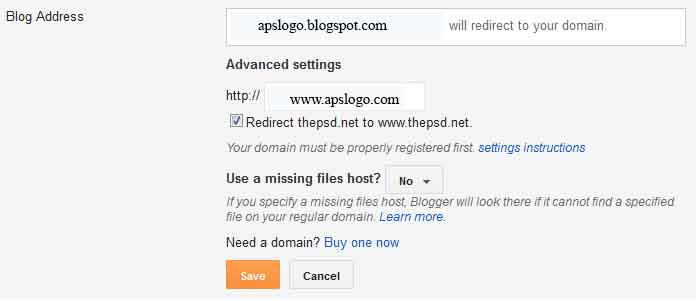
    4,Now select switch to advanced settings
    5,Now add your custom domain and click on save
    6,Click on Edit (check the bellow snapshot) 

     7,Now select Redirect yoursite.com to www.yoursite.com. 

    8,Now click on save and you have done.

Now if you want to add the A-records to your DNS manager then simply find the A-records and then add the four ip addresses given bellow.

216.239.32.21
216.239.34.21
216.239.36.21
216.239.38.21
And you have finally done, your DNS might take 1 or 2 hour to redirect your blogger blog.
Question ?

If you have any question about the setting up the custom domain for blogger blog then feel free to ask  make a comment
Why you should buy custom domain for blogger Blog ?

Why you should buy custom domain for blogger Blog ?

All the bloggers starts blogging using the free subdomain provided by the bloggers but as time goes many people found that you have a blog and you are running that blog under the blogger subdomain. And when you are receiving handsome traffic and then you found that you don’t have sponsors for your blog and the blogger ranks are also increases day by day. And still there are many confusion in blogger like what if they lost their Alexa rank, page rank in custom domain ? well the solution of that kind of questions is also given bellow.


 Your blog posts will get more shares and bookmarks

When you have your own custom domain name instead of the blogger’s sub domain then people will think that you are serious about your blog and the articles of your blog is unique and it will make good impression on the visitors and they will be your royal reader. And your reader will also share some of the good articles with their friends and they can also bookmark your blogger articles.

Fans and subscriptions will increases with the custom domain

Mostly people are not trusting the subdomains of the blogger’s blog because its free and anyone can make it so they can guess that you cant publish good content on your blog because you are using the subdomain of the blogger and when you have custom domain for your blogger blog then your Facebook and twitter follower will increase.

It Costs Just $10 To Buy a domain name !!

You can buy the custom domain in just $10/year and its not big deal !! there are many domain name provider like Godaddy and BlogRock etc. there are many more. And we have bought our blogger domain name from the Godaddy and its easy to redirect your blogger subdomain to the custom domain in my next article I will publish how to set a custom domain for the blogger blog.


Will you lose your traffic and web ranks ?

Its main confusion of all the blogger that what if they lost their blogger traffic and web ranks ? well we are just redirecting the blogger subdomain to the custom domain and all the web ranking system are based on the content and the traffic you get and when the web ranking gets updated and your blog will get back the web ranks.

Some  Publisher network don’t accept the subdomains

Publisher network like buysellads ads do not accept the subdomains it means that you are losing 60% of the revenue from your blog !!!

What you are thinking  ??

If you have any question about buying the custom domain for the blogger blog then feel free to ask.
Saturday, May 11, 2013
How to Know/Find Your Own Mobile Number?

How to Know/Find Your Own Mobile Number?

When people buy a new SIM-card for your mobile, they cannot keep remembering their mobile number immediately. It takes some time to be got memorized. In India, mobile phone users are increasing rapidly. This trick will teach you to know your own Airtel, Idea, or Vodafone SIM-card number (Mobile number). What people can do if they forget their own mobile number when they want to recharge or want to give their mobile numbers to others? Follow this simple method and get your forgotten or new mobile number by just dialing some numbers with your mobile cell phone of any mobile number operator service. 

Know/Find Your Own Mobile Number

Note: Just follow the process and use these numbers for your desire telecom operator. You need to dial below numbers from your mobile keypad to know your own mobile number for any mobile operator.
Airtel

—»  Dial *121*9# and press OK.


—»  Dial *140* 6575# and press OK.

—»  Dial *141*123# and press OK.

—»  Dial *282# and press OK.

—»  Send a blank SMS to 59103 and wait for reply message.


Idea

—»  Dial *789# and press OK.

—»  Dial *1# and press OK

  
Vodafone

—»  Dial *121*0# and press OK.

—»  Dial *112*2# and press OK.

—»  Dial *555*0# and press OK.


Aircel

—»  Dial *122*131# and press OK.

—»  Dial *131# and press OK.

—»  Dial *888# and press OK

  
Tata Docomo

—»  Dial *580# and press OK.

—»  Dial *1# and press OK


Reliance

—»  Dial *1# and press OK.


Videocon

—»  Dial *1# and press OK.


Virgin

—»  Dial *1# and press OK.


Uninor

—»  Dial *444# and press OK.

—»  Dial *555# and press OK.

—»  Dial *1# and press OK.


BSNL

—»  Dial *99# and press OK.

—»  Call at 24365 and ask them.


MTS

—»  Send a message NUM to 51230 and wait.  


I have not tested all these numbers. So try these number if you like, and make some noisy comments. Post any other number related this post in comments. Inform me if any above number doesn’t work. Above numbers might be change on time. It that case, just contact your mobile number call center to get information about latest numbers.
Monday, May 6, 2013
no image

Chitika Ads Review

Chitika Ad Network Sign Up
Chitika is a pay per click ad network that many, most of which have been banned from adsense, are starting to move across to. Chitika’s ads have a similar look and feel to adsense making them familiar to visitors. The difference is that the ads are search targeted meaning the ads displayed are driven by the keywords in which the visitor typed into the search engine to get to your site.


Chitika vs Adsense

Chitika allows their ads to be displayed on the same page as adsense units. Adsense is contextual targeting and is picking up relevant keywords from your page whilest chitika will be displaying different ads based on the search made by the visitor.

POSTIVES

    #Low payout limits. $10 for PayPal or $50 by cheque
    #Can use alongside adsense and other ad networks
    #Search targeted ads ensure that only relavent ads are shown to the visitor
    #Chitika review only one of your websites. Once you have been approved, you can use Chitika on any of your sites
    #Chitika support countries worldwide with their ad units
    #Auto-resizing mobile ads makes monetizing mobile traffic very easy

NEGATIVES

    #Pay per click rates will be less than adsense averaging anywhere between $0.02 – $3.00. It is dependant on the keywords that brings the traffic to your site
    #Approvals can take up to 7 business days
    #Traffic from referrals are not targeted very well and ads are displayed based on your main keyword or title


Enterprise


For those who are already earning over $10k in online ads and are looking for a new ad-network to move across to please get in touch with us. As an affiliate of Chitika, we can see about getting you approved for their Enterprise program which includes benefits such as top tier ads and having a dedicated account manager.
Apply to be a Chitika Publisher!
Saturday, May 4, 2013
Fake Call Your Friends Using Any Mobile Number

Fake Call Your Friends Using Any Mobile Number

People usually try to bring something new and try them on their friends so that they can impress them and side by side depress them with their funny pranks. So pranking has become a latest fashion in todays world so some people prank physically and some mentally so we have already posted many articles on different pranking methods you can use to depress or make fun of your friends.
Today we are taking it to a new level by revealing you another amazing online fake callingservice called “CrazyCall”. This service is simply unbelievable and works quit perfect, so there is no point of saying that this service is useless as I have tried it and it works perfect. Some of you might have used it but some of you don’t know what is Crazy Call, so okay for all those who do not know what is Crazy Call it’s a simple online service which connects your call through their server to anyone you wanna talk in the world.
Crazy Call is not a free service as it charges with their international call prices but well if someone want to prank with you than some price cost is nothing to matter. So you should check steps below to see how Crazy Call works.


FOLLOW BELOW STEPS

1. Visit CRAZY CALL WEBSITE
2. Now you will be on their website which looks something like below .


3. Now you can see that theirs a Green Box above in the image asking you too choose country and than insert numbers you wanna display and make your call too, insert everything like below I have done in the image. 


4. Choose the country like I am in India and than the Number you wanna display like I have put 9191919191 you can put any number you wanna display and than put the number you wanna make your call too like 999xxxxxxx and choose in which voice you wanna make your call to, this is the best option and if you do not know about this thing this feature will simply manipulate your voice into female or harsh male really awesome.
5. Now click on GET ME A CODE and you will than navigate to their another page which will give you two numbers to call and a code which you have to enter when your call is connected.


6. So now you can call any one of those numbers above, two numbers are given just in case you are not able to call with one number you can connect your call with another one and than when your call is connected the computer asks you to enter the code you see above just enter that and boom your call will be connected with your friend displaying him the fake number you entered.
7. So now enjoy this fake call and make your friends cry, tell them it’s a call from their college and they have been suspended for not attending lectures or anything you know better than me how to prank them make sure to read the below Warning.
warning
The call costs you with International Prices, it works good but it costs like Rs. 15 for 1 Minute call, and from my experience I tried it out and the service was good there is no advertisement or anything but it charged me like Rs. 30 for 2 Minute so beware of it only use this service if you really want some serious prank else do not use this service.
Copyright © 2012 Blogger Tips and Tricks All Right Reserved