New Post

Rss

Thursday, May 16, 2013
How to Make Money with Protypers Review

How to Make Money with Protypers Review

EARN OVER $200 US DOLLARS A MONTH

Welcome Back, Nice to see you again, I found a this program recently on the web that promised to give you the Online Business opportunity (Data Entry) for FREE, Earn up to $200 USD per month?? Is it True?

Let's SEE...

What is ProTypers ??

ProTypers is a conglomerate of data entry specialists. We work primarily on converting scanned documents from image-to-text for institutions in North America and Europe. We also offer our services to Neural Network Text Imaging developers and provide CAPTCHA decoding for the visually impaired (blind).


 We’re currently hiring data entry personnel from all over the world. The only requirement to work for us is to have a computer, an internet connection and the ability to type over 30 Words per Minute. You decide when to work and for how long. The faster you type, the more money you earn.
ProTypers.com is ideal for:
sign up

    - Mothers that stay at home.
    - Parents that need a second job.
    - Students.
    - People in between jobs.

How much you earn depends on how much you work. Our top typers earn between $100 and $250 each month! Our Rates start from $0.50 for each 1000 words typed and can go as high as up to $1.5 for each 1000 words typed. We Pay through Debit Cards, Bank Checks, Paypal, Webmoney, Liberty Reserve and Western Union.

How Do I Earn Money?

In ProTypers.com, the money you make will depend on how much you work and at what time you work. The amount of money that you earn will depend on Rates. A Rate will show you the amount of money you will earn if you type in 1000 images. For example: If you have a Rate of $0.90 for 1000 images, then you will earn $0.90 when you type in 1000 images. The Rates will be changing every hour. You can check the rate for every hour of the day in the “Solve Images” and the “Statistics” page. The rate for the current hour will be highlighted.

How To Earn More Money ?

This is the most tricky part, the way that they promised to let you earn over $200USD Monthly, is to refer others, which need to give a lot of effort to archive it...
Here you will earn 10% commission of the people that you invite to work in ProTypers. You will simply need to provide them with an affiliate link and they will be counted as one of your referrals. 


Let us Calculate it :

If you earn about $0.50 per day

- 0.5 x 30 = $15

You will earn $15 per month

If you refer 10 people to join, & you earn 10% of their total earnings.

- 0.5 x 30 = $15
- 0.5 x 10% x 10 = $15

You will earn roughly $30 per month

How about you refers 50 people to join??

- 0.5 x 30 = $15
- 0.5 x 10% x 10 = $15
- 0.5 x 10% x 40 = $60

$15 + $15 + $60 = $90 USD
sign up

You will earn $90 per month

And this is definitely a long-term business to invest in, check it out
If you are interested, Click Here
Wednesday, May 15, 2013
How I moved my Blogger Blog to WordPress

How I moved my Blogger Blog to WordPress

As promised, I am letting you all know how I moved from Blogger to WordPress, and what I did to make the move as painless as possible! So without further adieu…

Moving from Blogger to WordPress: A Step by Step Guide

 (These instructions assume you have your own domain already. If you don’t own a domain name you can purchase one when you purchase hosting. You can also skip step 4.)

Step 1: Purchase hosting.

I purchased hosting from SiteGround for my new WordPress blog. Although you can purchase hosting at whichever host provider you prefer. I chose SiteGround because I already have an account with them, and they have been good to me! Plus they have a one-click WordPress installation. No uploading files through your FTP Manager, no creating document roots, no complicated instructions at all. I just had to click install, change a few simple settings and it was done for me! How convenient is that?! You can view Siteground’s installation tutorial here to see just how easy it is! I would also recommend GoDaddy as well. I have previously used GoDaddy’s hosting service and didn’t find it too terribly difficult to navigate.


Step 2: Install WordPress.

Once you have secured hosting, I recommend installing WordPress on your site at this point. Don’t worry this WILL NOT effect your current blog. It will still be visible on Blogger until you redirect your domain to your new blog. (I recommend doing this now because once the redirect is processed your WordPress site will be seen by visitors versus a landing page from the host provider.)


Step 3: Export your Blogger content.

From your Blogger Dashboard, click “Settings” >> Click “Other” >> Click “Export Blog” >> Click “Download Blog

Again, don’t worry this WILL NOT delete your blog or your content. It simply downloads all your content (posts, comments and pages) into a file for safe keeping should something go wrong while importing to WordPress.

Step 4: Redirect your domain.

You need to update your “Nameservers” for your domain in order to redirect your domain to your new WordPress site. I purchased my domain through Blogger so I will give instructions here on how to update your “Nameservers” if you purchased your domain through Blogger.

You will need to access the cPanel for your domain, to do that you need to go to:

http://google.com/a/cpanel/yourdomain.com


Changing “yourdomain.com” to your own domain. You will be directed to log into Google Apps. If you do not have an administrator account set up, it usually defaults to bloggeradmin@yourdomain.com. If for some reason you cannot log in, follow the steps to recovery your log in information, which will be sent to the email address used when you purchased your domain.

Now that you are logged in, click the “Domain Settings” Tab >> Click “Domain Names” >> Click “Advanced DNS Settings

Here you will be given your log in information to change your DNS Settings. Domains purchased through Blogger are usually through GoDaddy or Enom.

Click “Sign in to DNS console“, and use the information provided to log in so you can update your “Nameservers”. I am not sure how the Enom console is set up, but for GoDaddy you need to click “Set Nameservers“.

You will need the Nameservers for your hosting provider. Usually this information can be found in the sidebar of your hosting account’s cPanel. Nameservers will vary from host provider to host provider, but the SiteGround Nameservers look like this:

NS1.SITEGROUND205.COM
NS2.SITEGROUND205.COM

Make sure you select “I have specific nameservers for my domain.” You just need to delete the Nameservers that currently exist, and replace them with the Nameservers for your host provider, then click “OK“. Congrats! Your nameservers have been updated. Propagation can take anywhere from 2 hours to 48 hours, while usually NOT that long, just be patient for the redirect to process.


Step 5: Import your content.

Once the redirect is processed and you can see your new WordPress site when visiting your URL, you are ready to import your content! There are TWO ways to do this, and I will give you the instructions for both. They are equally simple but either way has it’s “cons“.

Use the Blogger Importer. You can use the Blogger Importer by clicking “Tools” on your WordPress Admin Sidebar >> Click “Import” >> Click “Blogger“. Note: If you use the Blogger Importer you will need to be logged into the Google Account in which you manage your Blogger blog.

You will be asked to install the Blogger Importer plugin before proceeding. So go ahead and install the plugin and then return to the Import section.

Once you run the Blogger Importer, you will be prompted to grant WordPress access to your Google Account. You will need to grant access so the Importer can import your content. After granting access you will be redirected to a page listing your blog, the number of posts and the number of comments to be imported. Click “Import“. If you manage more than one Blogger blog under your Google Account, make sure you import the correct one!

Depending on how much content you have, will depend on the length of time it takes to import.


CONS OF USING THE BLOGGER IMPORTER:

#The Blogger Importer does not handle Blogger Static Pages. So if you have Static Pages on your Blogger blog, you will need to manually create them again, in WordPress. This could be as easy as copying and pasting from your Blogger Pages to your new WordPress Pages.

#The Blogger Importer removes the formatting for ALL of your posts, making your nice, neat paragraphs one big paragraph.

PROS OF USING THE BLOGGER IMPORTER:

#Quick and easy.

# All of your Blogger labels are uploaded automatically as Categories.

→ Convert your Blogger file into a compatible WordPress file.


Trust me it is A LOT easier than it sounds… There’s an App for that! You can use this Blogger to WordPress Conversion Utility, and all you need to do is upload your Blogger file that you obtained in Step 3, and the Conversion Utility will convert and download a WordPress compatible file for you!

Then you would use the WordPress Importer (instead of the Blogger Importer) to upload your new file to WordPress.

CONS OF CONVERTING YOUR FILE AND USING THE WORDPRESS IMPORTER:

#Your Blogger labels do not upload  as Categories and all posts are left “Uncategorized”.

#The WordPress Importer deletes formatting on SOME of your posts, versus the Blogger Importer, which removes formatting on ALL your posts.

PROS OF USING THE WORDPRESS IMPORTER:

#Quick and easy.


#Converting your file, and uploading keeps your pages in tact. So it will import your Blogger static pages!

So as you can see both options are simple, but the real decision is: do you want to create all new static pages for your site, OR do you want to re-categorize all your posts? I am a stickler for formatting, I like nice clean breaks, justified text and organized paragraphs, so I chose the latter. I thought it would be easier to re-categorize all my posts versus re-formatting them all! (I did have to re-format some but not all, and I am sure there are some that I missed, but I will get to it eventually!) I used a Bulk Category Creator, to create categories for all the labels I had over at Blogger. I just copied all of my labels and pasted them in the plugin, and voila! I used the Quick Edit feature on each post from the “All Posts” screen to re-add the posts’ categories. It was a lot of work, but better than having to re-format all my posts!

CONGRATS you are done with your move from Blogger to WordPress! Here are some other things to consider:

→ Design. You can peruse the internet for free WordPress themes, or you can purchase premium themes like Genesis Framework and Child Themes from StudioPress, or The Thesis Theme from DIY Themes. If you aren’t savvy with coding or just can’t seem to find a theme you like, you can hire a professional like me to create custom design for you!

→ Feeds. You will need to update your feeds such as your RSS feed, your email subscription feed, Networked Blogs, etc. After all, you will want all of your loyal followers and readers to come with you! …and those GFC Followers, they won’t miss too much, you will still appear in their Google Reader (if you already had a domain – if you had a blogspot domain, I am not sure, but I don’t think you will. {sad face}

→ Sidebar. Unfortunately, you don’t get to “bring” your Blogger sidebar with you to your new WordPress blog, so you will want to add all of your sidebar goodies from your Blogger blog to your new WordPress blog.

I think that’s all folks! My perfectly imperfect Blogger to WordPress Step by Step Guide. I hope you enjoyed and that this assists you in completing your own Blogger to WordPress Migration!

Cheers!

Don’t forget to share the love! ↓


Tuesday, May 14, 2013
How To Automatically Redirect A Blogger Blog To Another URL

How To Automatically Redirect A Blogger Blog To Another URL

There are a number of reasons you may want to automatically send visitors to your blog to another URL or from one blog to another.For example if you moved your blog, if you had two blogs and wanted to focus one just one and cover both topics.Automatically directing visitors to another URL is actually quiet easy and only requires a snippet of code added to the top of the template.In this post i will show you the code needed to automatically Redirect from a Blogger Blog to any other URL.


Firstly i should mention some people don't like to be redirected and you should only direct to a site with similar content.If you redirect people to sales pages, sites with adult content or anywhere the user is uncomfortable with it will put your Blogger account in jeopardy.For this reason the code i have in this post can be set to Redirect in an amount of time set by you.So you can set the code to redirect after 5 seconds and place a message at the top of the blog telling visitors they will be redirected.
 

With that in mind i have created a test blog that will direct to Google.Com so you can see how it works.Follow the link and wait 5 seconds for the redirect.

Add Auto Redirect Code To Blogger

Step 1. In Your (New Design) Blogger Dashboard Click The Drop Down Menu For Your Blog > Choose Template > Then Edit Html > Now Proceed > Tick The Expand Widget Templates Box.


Step 2. Find the following piece of code in your blogs Html :
(It's Near The Very Top)

<head>
Step 3. Copy And Paste The Following Code Directly Below / Under <head>
<meta content='5;url=http://apslogo.blogspot.com/' http-equiv='refresh'/>
Important -
1. Replace http://www.apslogo.blogspot.com/ In Blue With The URL You Want To Forward To.
2. The Number 5 In Red Sets The Amount Of Seconds Before The User Is Redirected Change This To Suit.

Step 4. Save your template and your blog will now redirect after the time you set.Once again remember don't use this to send people to sites unrelated or with spam as your entire Blogger Account may be effected.

If you give at least 5 seconds and add a clear message at the top of the blog there should be no trouble.Make sure to check out more of our Blogger Help Posts

Add Your Comments, Views And Questions Below.


Monday, May 13, 2013
Get approved by Google AdSense using Blogger

Get approved by Google AdSense using Blogger

I am going to share some tips with you to get approved by AdSense using blogger. Every Bloggers and webmasters are dreaming to make money using  their blog, Google AdSense is the grate way to make money with blogs. All you need is approved AdSense account, but its not too easy to get approved by Google AdSense, your blog should follow their policy to get approved by them! And here are few tips to get approved by Google AdSense using blogger blog.

1. Write Original and fresh content

Write your own content and never publish copied content  if you are publishing copied content in your blog then Google AdSense will never approve your application.And remember one thing Google loves fresh and original content. So write fresh and Original content and it will also increase your blog’s traffic.


2. Age of your site


In Google AdSense policy they require 6 month old blog. And well it takes 6 months to optimize your blog, But in real if your content is so good then you need not wait for 6 months you just need to wait for a single month.


3. Add your blog into search engines

You have to add your blog into different search engine like Google , yahoo , Bing so you can get traffic using that search engine and in AdSense its also require to add your site in the different search engine.
4.Number of posts require to get approved by Google AdSense
You must have published more then 50 posts before applying for Google AdSense approval. And write 100 to 300 words in each posts so you can get traffic from search engine and you will get approved by Google AdSense within a week.


5. Fill the AdSense forum accurately

Don’t write fake address in AdSense signup forum because later it will send you a post to verify your address. Fill address forum correctly and don't use proxy while applying for Google AdSense account. For more information read AdSense policy here.

Now wait for a week for their reply if you have followed above five point then you will get approved by them.
Sunday, May 12, 2013
How to setup a custom domain with blogger blog ?

How to setup a custom domain with blogger blog ?

In our previous article I have explained  Why you should buy custom domain for blogger Blog ?  And as I promised today I am going to show you how to setup a custom domain for blogger blog. Its too easy to setup a custom domain for blogger blog. There are two steps of setting up the custom domain for blogger blog 1st one is adding CNAME records and 2nd one is adding A-records. CNAME records used to connect your blogger blog to the custom domain so lets add CNAME record in your custom domain. 
 
Creating CNAME records for custom domain

    1,Login into your DNS provider account (i.e. godaddy, Bigrock etc.)
    2,Now click on domain and just lunch DNS manager.
    3,Now find CNAME Records and then add www in host and then add ghs.google.com to points to and you have done.
    4,Now click on save zone files and you have done.

Creating A-records for custom domain

A-records is used to redirect the naked domain (apslogo.com) to the full domain (www.apslogo.com). well now its not necessary to add the A-records to the DNS manager because blogger have already added one awesome feature using that you can redirect the naked domain to full domain, Lets enable this feature.

    1,Login into your blogger account
    2,Go to setting
    3,Now click on add a custom domain
    4,Now select switch to advanced settings
    5,Now add your custom domain and click on save
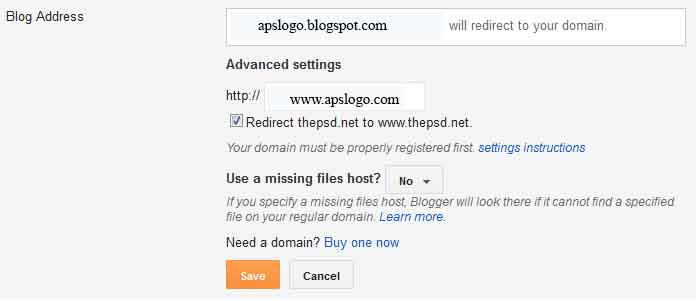
    6,Click on Edit (check the bellow snapshot) 

     7,Now select Redirect yoursite.com to www.yoursite.com. 

    8,Now click on save and you have done.

Now if you want to add the A-records to your DNS manager then simply find the A-records and then add the four ip addresses given bellow.

216.239.32.21
216.239.34.21
216.239.36.21
216.239.38.21
And you have finally done, your DNS might take 1 or 2 hour to redirect your blogger blog.
Question ?

If you have any question about the setting up the custom domain for blogger blog then feel free to ask  make a comment
Why you should buy custom domain for blogger Blog ?

Why you should buy custom domain for blogger Blog ?

All the bloggers starts blogging using the free subdomain provided by the bloggers but as time goes many people found that you have a blog and you are running that blog under the blogger subdomain. And when you are receiving handsome traffic and then you found that you don’t have sponsors for your blog and the blogger ranks are also increases day by day. And still there are many confusion in blogger like what if they lost their Alexa rank, page rank in custom domain ? well the solution of that kind of questions is also given bellow.


 Your blog posts will get more shares and bookmarks

When you have your own custom domain name instead of the blogger’s sub domain then people will think that you are serious about your blog and the articles of your blog is unique and it will make good impression on the visitors and they will be your royal reader. And your reader will also share some of the good articles with their friends and they can also bookmark your blogger articles.

Fans and subscriptions will increases with the custom domain

Mostly people are not trusting the subdomains of the blogger’s blog because its free and anyone can make it so they can guess that you cant publish good content on your blog because you are using the subdomain of the blogger and when you have custom domain for your blogger blog then your Facebook and twitter follower will increase.

It Costs Just $10 To Buy a domain name !!

You can buy the custom domain in just $10/year and its not big deal !! there are many domain name provider like Godaddy and BlogRock etc. there are many more. And we have bought our blogger domain name from the Godaddy and its easy to redirect your blogger subdomain to the custom domain in my next article I will publish how to set a custom domain for the blogger blog.


Will you lose your traffic and web ranks ?

Its main confusion of all the blogger that what if they lost their blogger traffic and web ranks ? well we are just redirecting the blogger subdomain to the custom domain and all the web ranking system are based on the content and the traffic you get and when the web ranking gets updated and your blog will get back the web ranks.

Some  Publisher network don’t accept the subdomains

Publisher network like buysellads ads do not accept the subdomains it means that you are losing 60% of the revenue from your blog !!!

What you are thinking  ??

If you have any question about buying the custom domain for the blogger blog then feel free to ask.
Saturday, May 11, 2013
How to Know/Find Your Own Mobile Number?

How to Know/Find Your Own Mobile Number?

When people buy a new SIM-card for your mobile, they cannot keep remembering their mobile number immediately. It takes some time to be got memorized. In India, mobile phone users are increasing rapidly. This trick will teach you to know your own Airtel, Idea, or Vodafone SIM-card number (Mobile number). What people can do if they forget their own mobile number when they want to recharge or want to give their mobile numbers to others? Follow this simple method and get your forgotten or new mobile number by just dialing some numbers with your mobile cell phone of any mobile number operator service. 

Know/Find Your Own Mobile Number

Note: Just follow the process and use these numbers for your desire telecom operator. You need to dial below numbers from your mobile keypad to know your own mobile number for any mobile operator.
Airtel

—»  Dial *121*9# and press OK.


—»  Dial *140* 6575# and press OK.

—»  Dial *141*123# and press OK.

—»  Dial *282# and press OK.

—»  Send a blank SMS to 59103 and wait for reply message.


Idea

—»  Dial *789# and press OK.

—»  Dial *1# and press OK

  
Vodafone

—»  Dial *121*0# and press OK.

—»  Dial *112*2# and press OK.

—»  Dial *555*0# and press OK.


Aircel

—»  Dial *122*131# and press OK.

—»  Dial *131# and press OK.

—»  Dial *888# and press OK

  
Tata Docomo

—»  Dial *580# and press OK.

—»  Dial *1# and press OK


Reliance

—»  Dial *1# and press OK.


Videocon

—»  Dial *1# and press OK.


Virgin

—»  Dial *1# and press OK.


Uninor

—»  Dial *444# and press OK.

—»  Dial *555# and press OK.

—»  Dial *1# and press OK.


BSNL

—»  Dial *99# and press OK.

—»  Call at 24365 and ask them.


MTS

—»  Send a message NUM to 51230 and wait.  


I have not tested all these numbers. So try these number if you like, and make some noisy comments. Post any other number related this post in comments. Inform me if any above number doesn’t work. Above numbers might be change on time. It that case, just contact your mobile number call center to get information about latest numbers.
Monday, May 6, 2013
no image

Chitika Ads Review

Chitika Ad Network Sign Up
Chitika is a pay per click ad network that many, most of which have been banned from adsense, are starting to move across to. Chitika’s ads have a similar look and feel to adsense making them familiar to visitors. The difference is that the ads are search targeted meaning the ads displayed are driven by the keywords in which the visitor typed into the search engine to get to your site.


Chitika vs Adsense

Chitika allows their ads to be displayed on the same page as adsense units. Adsense is contextual targeting and is picking up relevant keywords from your page whilest chitika will be displaying different ads based on the search made by the visitor.

POSTIVES

    #Low payout limits. $10 for PayPal or $50 by cheque
    #Can use alongside adsense and other ad networks
    #Search targeted ads ensure that only relavent ads are shown to the visitor
    #Chitika review only one of your websites. Once you have been approved, you can use Chitika on any of your sites
    #Chitika support countries worldwide with their ad units
    #Auto-resizing mobile ads makes monetizing mobile traffic very easy

NEGATIVES

    #Pay per click rates will be less than adsense averaging anywhere between $0.02 – $3.00. It is dependant on the keywords that brings the traffic to your site
    #Approvals can take up to 7 business days
    #Traffic from referrals are not targeted very well and ads are displayed based on your main keyword or title


Enterprise


For those who are already earning over $10k in online ads and are looking for a new ad-network to move across to please get in touch with us. As an affiliate of Chitika, we can see about getting you approved for their Enterprise program which includes benefits such as top tier ads and having a dedicated account manager.
Apply to be a Chitika Publisher!
Saturday, May 4, 2013
Fake Call Your Friends Using Any Mobile Number

Fake Call Your Friends Using Any Mobile Number

People usually try to bring something new and try them on their friends so that they can impress them and side by side depress them with their funny pranks. So pranking has become a latest fashion in todays world so some people prank physically and some mentally so we have already posted many articles on different pranking methods you can use to depress or make fun of your friends.
Today we are taking it to a new level by revealing you another amazing online fake callingservice called “CrazyCall”. This service is simply unbelievable and works quit perfect, so there is no point of saying that this service is useless as I have tried it and it works perfect. Some of you might have used it but some of you don’t know what is Crazy Call, so okay for all those who do not know what is Crazy Call it’s a simple online service which connects your call through their server to anyone you wanna talk in the world.
Crazy Call is not a free service as it charges with their international call prices but well if someone want to prank with you than some price cost is nothing to matter. So you should check steps below to see how Crazy Call works.


FOLLOW BELOW STEPS

1. Visit CRAZY CALL WEBSITE
2. Now you will be on their website which looks something like below .


3. Now you can see that theirs a Green Box above in the image asking you too choose country and than insert numbers you wanna display and make your call too, insert everything like below I have done in the image. 


4. Choose the country like I am in India and than the Number you wanna display like I have put 9191919191 you can put any number you wanna display and than put the number you wanna make your call too like 999xxxxxxx and choose in which voice you wanna make your call to, this is the best option and if you do not know about this thing this feature will simply manipulate your voice into female or harsh male really awesome.
5. Now click on GET ME A CODE and you will than navigate to their another page which will give you two numbers to call and a code which you have to enter when your call is connected.


6. So now you can call any one of those numbers above, two numbers are given just in case you are not able to call with one number you can connect your call with another one and than when your call is connected the computer asks you to enter the code you see above just enter that and boom your call will be connected with your friend displaying him the fake number you entered.
7. So now enjoy this fake call and make your friends cry, tell them it’s a call from their college and they have been suspended for not attending lectures or anything you know better than me how to prank them make sure to read the below Warning.
warning
The call costs you with International Prices, it works good but it costs like Rs. 15 for 1 Minute call, and from my experience I tried it out and the service was good there is no advertisement or anything but it charged me like Rs. 30 for 2 Minute so beware of it only use this service if you really want some serious prank else do not use this service.
Friday, May 3, 2013
Bidvertiser Ads Review

Bidvertiser Ads Review

Bidvertiser Review
Bidvertiser is a pay per click company and was launched in 2003 by Bpath; Ltd. Bidvertiser's business model is to auction your ad space to advertisers  and sell it to the highest bidder strictly based on PPC. They even pay you $20 for just registering as a publisher or as an advertiser.

Joining with Bidvertiser

Joining Bidvertiser as a publisher or advertiser is not difficult. Bidvertiser does not require your  site to have certain minimum impressions per month or year, and their Ads are based on CPC. You don’t need to send the signed  W9 or W8BEN tax forms as part of registration.You will get an instant approval in most cases.

However, there is a manual review of websites for the joining process to be completed and this is in order to reject websites, which do not comply with the Bidvertiser requirements. If you want to be a publisher with Bidvertiser, you may join with the link on the top right. If you want to advertise your website with Bidvertiser, you may use the bottom right banner.


Bidvertiser Review

Bidvertiser Conversion bonus

Apart from the CPC value for each valid click, Bidvertiser has a conversion bonus if any of your clicks turn to valid leads. Leads occur when somebody fills up a contact form with their valid phone number and address. Like a form filled up for insurance or advanced pay loan.


Bidvertiser Revenue Generating Tool Bar

Second great feature  offered by Bidvertiser is the customized toolbar. This revenue generating BidVertiser toolbar allows you to distribute your own customized toolbar to your website visitors and then earn money when your users use the toolbar for searching. The toolbar is fully customizable allowing you to add your logo, links to your home page  other tools and different widgets.

The most-recent addition which was introduced at the end of 2011 is the slider ad. Slider Ads are ads that slide up from the bottom of the screen and are displayed up on top of the page. This ad format is very popular, and it generates extremely high revenues. Slider Ads by default appear only once per 24 hours per user, are completely non-intrusive and have a small close button above them.

Bidvertiser Control Panel

Bidvertiser has a wide range of formats, which includes 728x90 Leaderboard, 468x60 Banner, 234x60 Half Banner, 120x240 Vertical Banner, 160x600 Skyscraper, 120x600 Skyscraper, 300x600 Half page, 300x250 Rectangle, 336x280 Large rectangle, 180x150 Rectangle, 240x400 Vertical rectangle and 125x125 Button.

What is different about Bidvertiser format is what is called by Bidvertiser as free design. This allows you to specify the length and width of the ad. You can specify your own dimensions with a set minimum of 120x60.

Publishers who need to modify the color or size of a bidvertsier ad do not need to update their site with the new modified code. Just edit the ad code in the Bidvertiser control panel and  Bidvertiser control panel automatically takes care of the rest. This feature was only recently introduced in adsense.

You have the option of specifying geographical areas where you want the ads to be shown up.

Referral Program


Bidvertiser also has a referral program. Bidvertiser pays you as follows for your referrals. Through your referral link when an advertiser sign up and first spends $10, your account will be credited $5. When that same advertiser spends $50, an additional $20 will be credited.

Through yor referral link when a publisher sign up and first earns $10, your account will be credited $10. When that same publisher earns $50, an additional $40 will be credited.


Other Features

Bidvertiser sells your ad space to the highest bidders among advertisers. We were surprised to find many advertisers with max eCPM bids of 1$  for one of our websites in niche area of music, whereas we were not able to sell the same ad space for 0.25$ through Adbrite, which has a very large advertiser base. Their ads nowadays are more context sensitive than it was before.


Conclusion

Bidvertiser stands out among ad networks in different areas like ad customization, and the high bids that they attain with their advertisers for selling ad space. However, their most remarkable feature is their payment option. Both the frequency of payments and the low payout at 10$.

Bidvertiser has to rectify many complaints about ad impressions and/or clicks not being counted after some days of  going smooth. Still it is a nice company and among the top choices as an adsense alternative. Click  Bidvertiser  to open a no obligation pubslisher account.

 Positives

    #Sign up process is painless and Bidvertiser review your site with instant account approval
    #Easy installation that requires an HTML code to be added to your webpages
    #Ads will instantly apear once code is added to your site, once this happens advertisers will be   able to start bidding to advertise with you
    #It is easy to change the appearance of the ads with a point and click tool
    #The toolbar can be altered in appearance to work with the look of your site

Negatives


    #Not very high pay out rates per click (this might only be the case with our chosen niches)
    #Ads aren’t always relevant to the content if you are targeting a small niche
    #Reporting within the Bidvertiser site is quite basic and doesn’t give a lot of information on number of impressions or on click through rates

Bidvertiser Vs Adsense

Bidvertiser can be used in conjunction with Adsense, some of the Bidvertiser ads do look similar to Adsense but you can customise these ads to amend that. Bidvertiser offer you the opportunity to bring in a decent income with the toolbar but generally have a lower pay out rate than Adsense for PPC. Although this is meant to increase with time the longer you stay with them – we haven’t noticed this yet.

Bidvertiser Payout Amount

Bidvertiser pays you on a net-15 basis or every 15 days. They have  one of the lowest  payouts in the industry at $10 which is through paypal. If you want to get paid by check, the minimum payout is $100.

Earnings are tracked in a very clunky reporting system that ideally needs to provide more information.

Signing up for Bidvertiser


Signing up is easy. The sign up form is straight forward and your account is approved immediately. You will receive an activation email and instructions on where to find the HTML code so you can start showing ads on your site immediately. Bidvertiser also has a blog that regularly updates you with new features.

Bidvertiser Support


Support is one of the prime factors when any company is reviewed. Whenever Bidvertiser was contacted through the e-mail, their response was quick. However, they mostly mailed a one liner which did not resolve the problem. Their support is definitely not as good as Adbrite or Chitika.

Thursday, May 2, 2013
Clicksor Ads Review

Clicksor Ads Review

clicksor
Here is our Clicksor review. Clicksor is a contextual ad network. This means that it uses certain keywords and phrases that are in the body text of your webpage to determine which ads display. Clicksor offer some unique ad types with numerous sizes available which some ad networks do not provide, making them attractive to publishers as an adsense alternative.
sign up

 Clicksor in action

Clicksor offers five different ad types to publishers to include on their website or blog. The first is perhaps the most unintrusive to visitors as it does not actually appear on the webpage at all.


clicksor pop undersPayPerView

clicksor pop undersFor those with a decent amount of traffic coming from search engines who are struggling getting visitors to click ads then Clicksor’s pay per view pop-under ads might just be the ads for you. When a visitor lands on your site, an ad will pop up underneath your page, invisible to the visitor. The visitor will not see the ad until the moment they close their browser.


clicksor interstitial
clicksor interstitialThe Interstitial ads operate in a similar way as they also take up no ad space and are pay per view. The difference being that they appear as visitors are browsing between the pages of your site. You have control over the frequency at which the ads display to suit your preferred level of visitor experience.

clicksor text links
PayPerClick
clicksor text linksClicksor is pretty transparent when it comes to sharing the average PPC in which their current publishers achieve. We have found their PPC rates for the intext and banner ads are generally lower than that found on other ad networks, but with their unique ad sizes you can achieve a higher click through rate by being creative with where you place the ads.
clicksor text banner
Many people using the internet today are seeing google-like adverts
on most webpages which have been inserted in the same areas of the screen. By having slightly different ad sizes than usual and in interesting places across your site, a high click through rate can be achieved.

Clicksor Review

Clicksor review websites very quickly and approval is pretty much immediate. They do allow you to have ads from other networks on the same page as long as you only have a maximum of three ad units from Clicksor. If you are going to use more than one ad network on the same page, we believe the PopUnder would be the best option as it would be the most non-intrusive and it will not lower your current earnings or click through rates.

Also if you are using a 3rd party ad network and choose to use the Intext or banner ads from clicksor along side, please ensure that the ads do not look the same as this could infringe on some of the 3rd parties terms and conditions and could result in a loss of all your earnings from them.


sign up Getting started with Clicksor

Clicksor is very easy to install. They offer a plugin for WordPress, Blogger, Drupal and Joomla. There is also the option to place the code inside your site yourself, preferably in the header or footer. This option can be slightly confusing to do, as you must go through each ad type separately and it is not immediately obvious how to select the ads you want. Basically, for the ads you do not wish to display simply click the “skip this ad” at the bottom and for the ads you wish to display click “save and continue”. It will generate the code for you at the end then its just a case of copying and pasting.

Tuesday, April 30, 2013
Egg Shell Slide Open Bookmarking Widget for blogger

Egg Shell Slide Open Bookmarking Widget for blogger

Every webmaster fights daily to increase web traffic and more subscriptions via social media sites. But attracting visitors/readers is difficult task for webmaster. Maintain quality of content with attractive widget to retain long time on blog a different type or innovative or stylish widget is necessary for blog/websites. In the earlier post we share you “Slide out Open Heart Bookmarking Widget for Blogger”.
Here in this article we share you the same type of “Slide out Widget” in Egg shell, which is stylish, hover, oval shape contains bookmarking button like, Google plus, Twitter, Facebook, Linkedin, Stumble upon, Email subscription, blogger, in single egg shell. Let’s begin the tutorials for adding “Egg shell Bookmarking widget” for blogger.

 How to Add “Slide Out Bookmarking widget in Egg shell”?

Sign into your blogger account
Click on “Template” link tab (In the new blogger interface)
Tick on “Expand Widget Template” box
Now search for code
</head>

After finding the code copy the below code and paste above to it


<script src='http://w.sharethis.com/gallery/shareegg/shareegg.js' type='text/javascript'/><script src='http://w.sharethis.com/button/buttons.js' type='text/javascript'/><script type='text/javascript'>stLight.options({publisher: &quot;bea50586-2b9f-448d-947a-01385f28e305&quot;, onhover:false}); </script><link href='http://w.sharethis.com/gallery/shareegg/shareegg.css' media='screen' rel='stylesheet' type='text/css'/>

After pasting the above code now search for code

</body>

After finding the code copy the below code and paste above to it

<div style='position: fixed; bottom: 2%; left: 2%;'><div class='shareEgg' id='shareThisShareEgg'/></div><script type='text/javascript'>stlib.shareEgg.createEgg(&#39;shareThisShareEgg&#39;, [&#39;facebook&#39;,&#39;twitter&#39;,&#39;googleplus&#39;,&#39;linkedin&#39;,&#39;blogger&#39;,&#39;stumbleupon&#39;,&#39;sharethis&#39;], {title:&#39; <data:blog.pageTitle/>&#39;,url:&#39;<data:blog.url/>&#39;,theme:&#39;shareegg&#39;});</script><a href="http://www.techmma.com/">Blogger Gadgets</a>

Now “Save Your Blog Template” and Preview your experiment. You can enjoy and entertain your blog visitors by adding this widget. 

Appreciation

If you enjoyed our tutorial and helped you little bit, help us to Subscribe to our blog.
How to Add Popup/Floating Ads Widget for blogger

How to Add Popup/Floating Ads Widget for blogger

After getting approval from Content based Advertisers (Pay per click) and driving good traffic, increasing readers but, Revenue of your blog not increasing. Dipping of Revenue if we analyze wrong placement of Ads, Selection of colors for ads display, and sizes etc makes your revenue drop down. There are so many ways to increase your blog revenue with simple bloggertricks and bloggertips. Here, BlogTariff is going to teach you about how to increase your Blog Revenue by adding Floating/Popu widget for blogger to display Ads.
Adsense is number in Content based Ads displaying (Pay per click) program. If Displays Ads in right place then definetly your income would increase gradually. Our tutorial will point you to educate how to create "Floating widget for Ads" on your blog.

What are the Advantages for adding "Floating widget for Ads"

Readers concetration may dragged towards widget where Ads displayed
Quite attractive widget brings readers to click on Ads
No need work hard for adding this widget
Simple methods makes you to add this widget for your blog
You can increase your blog Revenue by means of this "Floating Ads widget"

How to add "Floating Widget for Ads"

Sign into your blogger account
Click on "Design (Layout in the new blogger interface)
Click on "Add a Gadget" widget tab
Select "HTML/Javascript" widget
Now, copy the below code and paste in it

<style>
#btftopbar {
height:30px;
width:auto;
background: #005094 url('..');
background-repeat:repeat-x;
text-align:left;
padding-top:4px;
}
#adsground {
height:600;
margin:0 auto;
width: 160px;
background:#fff;
border-bottom:2px #005094 solid;
border-right:2px #005094 solid;
border-left:2px #005094 solid;
text-align:center;
padding:4px;
}

#headlineatas {
opacity:1.0;
height:auto;
width:auto;
position:fixed;
top:65px;
left:10px;
border-bottom:1px #005094 solid;
border-bottom:0px blue solid;
color:#333;
padding:0px;
z-index:1001;
font-size:13px;}
</style>
<script type="text/javascript">
function getValue()
{
document.getElementById("headlineatas").style.display = 'none';
}
</script>
<div id="headlineatas">
<div id="btftopbar">
<img align="left" style="padding-right:2px;" src="#" />
<span style="color:#fff;font-size:13px;font-weight:bold;text-shadow:black 0.1em 0.1em 0.1em">Click to Close</span>
<span style="color:#fff;font-size:13px;font-weight:bold;text-shadow:black 0.1em 0.1em 0.1em;float:right;padding-top:3px;padding-right:10px"><a href="http://www.bidvertiser.com/bdv/bidvertiser/bdv_ref.dbm?Affiliate_ID=25&Ref_Option=pub&Ref_PID=493381" target="_blank" onclick="getValue()">close</a></span>
</div>
<div id="adsground">
<h3>Sponsor Ads </h3>
<p align="left"><h3></h3></p>
<p>
"Ads code Here"
<br/></p></div></div>

Customization 

 Replace "Ads code Here" with your Adsense script code and 
If you want display 120x600 ads adjust "160px" to 120 
 By default Ads will be displayed at left sidebar, if you want to display ad on Right side then change "left:" with "Right". 
After all successful necessary modifications "Save your Widget" and "Save the blog Template". Now its time to preview your experiment. 

 Appreciation: 

If you enjoyed our tutorial and helped you little bit, help us to Subscribe to our blog.
Copyright © 2012 Blogger Tips and Tricks All Right Reserved